
Adding a rotating picture display under Docker

Installing, Securing and Updating Immich Kiosk
Mac Mini · Docker · Nginx Proxy Manager · Immich
Immich Kiosk is a lightweight web application that turns an Immich library into a continuously running photo display. It is particularly useful on a dedicated tablet, Raspberry Pi, smart display or browser window.
In this setup, Kiosk runs as a Docker container on the Mac Mini and communicates directly with the Immich server over the Docker proxy-net network. Nginx Proxy Manager provides the externally accessible HTTPS endpoint, while the Immich API key is kept separately from the Docker Compose file.
The resulting architecture is:
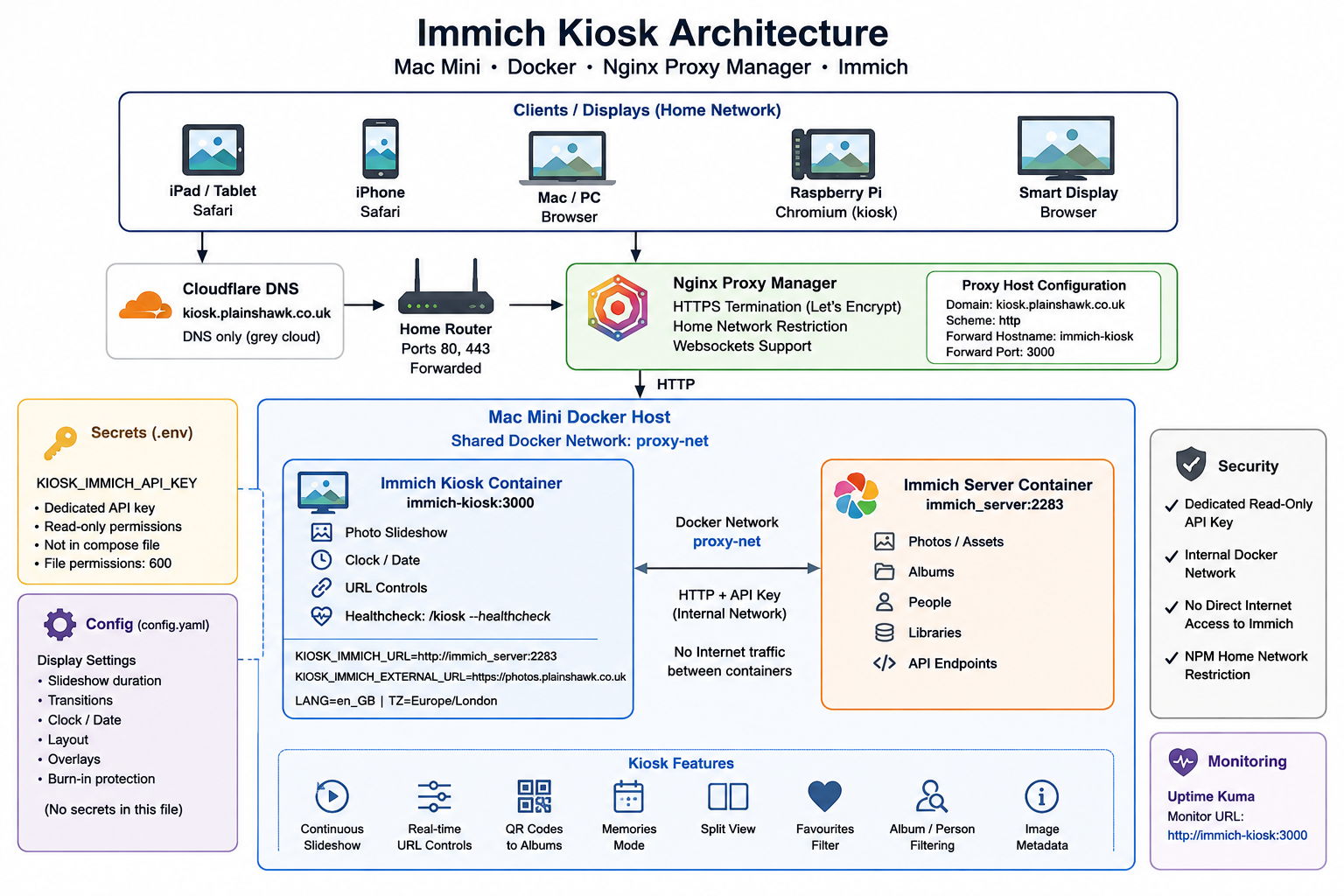
The important security boundary is that Kiosk is not given access to the Internet-facing Immich URL for its normal API traffic. It talks directly to http://immich_server:2283 over Docker's internal network.
Key Lessons Incorporated From Your Setup
1. Keep the API key in .env
The Immich API key is a secret and should not be embedded directly in docker-compose.yml.
The compose file uses:
env_file:
  - .env
with:
KIOSK_IMMICH_API_KEY=your_api_key_here
The .env file should have permissions of 600.
2. Use environment variables for the important connection settings
Immich Kiosk supports both configuration files and environment variables. The project's current Docker example explicitly uses environment variables for the API key and Immich URL. (GitHub)
For this installation, keep the API key and Immich connection URLs in the Compose environment, while using config.yaml for display preferences.
This avoids the configuration ambiguity that caused API authentication problems in the original installation.
3. Use the internal Docker hostname for Immich
Kiosk should use:
http://immich_server:2283
rather than:
https://photos.plainshawk.co.uk
for its API connection.
This keeps Kiosk-to-Immich traffic inside Docker and avoids unnecessarily sending internal requests through Nginx Proxy Manager.
The external URL is still configured separately for links and QR codes displayed by Kiosk.
4. Use the current healthcheck
The current Docker configuration uses:
test: ["CMD", "/kiosk", "--healthcheck"]
rather than a curl request to a /health endpoint. (GitHub)
This is important because an old healthcheck can make an otherwise healthy container appear unhealthy.
5. Give the API key read-only permissions
Create a dedicated Immich API key for Kiosk.
For the most trouble-free configuration, give it the required Read permissions for:
- Assets
- Albums
- People
- Libraries
- Tags
- Partners
Do not give the Kiosk API key write, delete or administrative permissions.
6. Keep Kiosk on proxy-net
Nginx Proxy Manager reaches Kiosk through:
proxy-net → immich-kiosk:3000
Kiosk simultaneously uses the same Docker network to reach:
proxy-net → immich_server:2283
If Kiosk is not attached to proxy-net, you can get either:
502 Bad Gatewayfrom NPM, or- an inability to retrieve photos from Immich.
7. Restrict the public Kiosk endpoint
The Kiosk displays your personal photographs.
Unless there is a specific reason to make it publicly accessible, restrict kiosk.plainshawk.co.uk to your home network using Nginx Proxy Manager.
Prerequisites
Before starting, confirm:
- Docker Desktop is running.
- Immich is installed and healthy.
- The Immich server container is called
immich_server. - Immich is listening on port
2283. - The shared Docker network
proxy-netexists. - Nginx Proxy Manager is running.
kiosk.plainshawk.co.ukhas a Cloudflare A record pointing to your public IP.- The Cloudflare record is DNS only / grey cloud.
- Immich is accessible at
https://photos.plainshawk.co.uk.
Stage 1 — Create the Immich API Key
Log into Immich:
https://photos.plainshawk.co.uk
Go to:
Account Settings → API Keys → New API Key
Create a key named:
immich-kiosk
Give it the required read permissions:
Assets       Read
Albums       Read
People       Read
Libraries    Read
Tags         Read
Partners     Read
Click Create.
Copy the key immediately. Immich does not allow you to retrieve the complete key later.
Store the key in Vaultwarden before continuing.
Do not put the key into this document, a shell history entry, Git repository or screenshot.
Stage 2 — Create the Directory Structure
Create the Docker directory and configuration directory:
mkdir -p ~/docker/immich-kiosk/config
cd ~/docker/immich-kiosk
The resulting structure will be:
~/docker/immich-kiosk/
├── .env
├── config/
│   └── config.yaml
└── docker-compose.yml
Stage 3 — Create the Secrets File
Create the environment file:
nano .env
Add:
KIOSK_IMMICH_API_KEY=your_api_key_here
Replace your_api_key_here with the API key generated in Stage 1.
Secure the file:
chmod 600 .env
Check:
ls -l .env
It should show permissions equivalent to:
-rw-------
The .env file should never be committed to Git or included in screenshots or configuration backups that are not encrypted.
Stage 4 — Create the Kiosk Configuration
Create the configuration file:
nano config/config.yaml
Use:
# Immich Kiosk Configuration
#
# Secrets and Immich connection settings are deliberately kept
# in environment variables rather than this file.

# Clock
show_time: true
time_format: 24
show_date: true
date_format: "DD/MM/YYYY"
clock_source: client

# Slideshow
duration: 60
transition: fade
transition_duration: 1.0
disable_screensaver: true
optimize_images: true
use_gpu: true

# Burn-in protection
# 0 = disabled
burn_in_interval: 0

# Image display
image_fit: cover
background_blur: true
background_blur_amount: 10

# Photo information
show_image_time: true
show_image_date: true
show_image_description: false
show_image_exif: false
show_image_location: true

# Layout
layout: single

# Content
show_archived: false
show_all_users: false
Why aren't the API key and Immich URL here?
Although Kiosk supports those settings in its configuration file, keeping them in environment variables gives us a cleaner separation:
.env
Secrets
docker-compose.yml
Connection settings
config.yaml
Display preferences
The project's current configuration schema continues to support immich_api_key and immich_url in configuration, while its Docker example demonstrates the environment-variable approach used here. (GitHub)
Stage 5 — Create the Compose File
Create:
nano docker-compose.yml
Use:
services:
  immich-kiosk:
    image: ghcr.io/damongolding/immich-kiosk:latest
    container_name: immich-kiosk
    tty: true
    restart: unless-stopped

    env_file:
      - .env

    environment:
      LANG: en_GB
      TZ: Europe/London

      # Internal Docker connection to Immich.
      # This bypasses Nginx Proxy Manager.
      KIOSK_IMMICH_URL: http://immich_server:2283

      # External URL used for links and QR codes.
      KIOSK_IMMICH_EXTERNAL_URL: https://photos.plainshawk.co.uk

    volumes:
      - ./config:/config

    healthcheck:
      test: ["CMD", "/kiosk", "--healthcheck"]
      interval: 30s
      timeout: 5s
      retries: 3
      start_period: 10s

    networks:
      - proxy-net

networks:
  proxy-net:
    external: true
Important
Do not change:
http://immich_server:2283
to the public Immich URL.
Kiosk should use the Docker hostname for its API connection.
Stage 6 — Verify proxy-net
Before starting Kiosk:
docker network inspect proxy-net
You should see the Immich containers attached to the network.
If proxy-net does not exist:
docker network create proxy-net
If Immich was started separately and isn't attached to the network, connect the appropriate Immich container to it.
For example:
docker network connect proxy-net immich_server
Do not blindly run this if the Immich container is already attached; verify first.
Stage 7 — Start Immich Kiosk
Start the container:
cd ~/docker/immich-kiosk
docker compose up -d
Watch the logs:
docker compose logs -f immich-kiosk
Look for a clean startup without API authentication errors.
Press:
Ctrl+C
to stop following the logs. This does not stop the container.
Stage 8 — Verify the Container Network
This is an important check following the 502 problem encountered during the original installation.
Run:
docker inspect immich-kiosk
Or:
docker inspect immich-kiosk | grep -A 20 '"Networks"'
Confirm that:
proxy-net
appears.
You can also use:
docker network inspect proxy-net
and look for:
immich-kiosk
immich_server
Both must be members of the network.
Stage 9 — Test Immich Connectivity From Kiosk
First test the Immich server:
docker exec immich-kiosk wget -qO- \
  http://immich_server:2283/api/server/ping
Expected result:
{"res":"pong"}
If this fails, Kiosk cannot reach Immich over Docker networking.
Check:
docker network inspect proxy-net
Stage 10 — Test the API Key
Test API authentication:
docker exec immich-kiosk wget -qO- \
  --header="x-api-key: YOUR_API_KEY" \
  "http://immich_server:2283/api/search/random?count=1" \
  | head -c 500
Replace YOUR_API_KEY with the actual API key.
A successful response should contain JSON describing an Immich asset.
If you receive 401
The API key is invalid.
Create a new key in Immich and replace the value in .env.
If you receive 403
The key probably does not have sufficient permissions.
Regenerate it with the required read permissions.
Then restart Kiosk:
docker compose up -d --force-recreate
Stage 11 — Add the DNS Record
In Cloudflare create:
| Type | Name | Content | Proxy |
|---|---|---|---|
| A | kiosk |
Your public IP | DNS only / grey cloud |
The resulting hostname is:
kiosk.plainshawk.co.uk
Do not use Cloudflare's orange-cloud proxy for this installation.
Stage 12 — Create the Nginx Proxy Manager Proxy Host
Log into NPM and select:
Proxy Hosts → Add Proxy Host
Details
| Field | Value |
|---|---|
| Domain Names | kiosk.plainshawk.co.uk |
| Scheme | http |
| Forward Hostname | immich-kiosk |
| Forward Port | 3000 |
| Cache Assets | Off |
| Block Common Exploits | On |
| Websockets Support | On |
SSL
Select:
- Request a new SSL Certificate
- Force SSL
- HTTP/2 Support
Then save.
Stage 13 — Restrict Kiosk to the Home Network
Because the Kiosk displays personal photographs, restrict access to your trusted networks.
In the Advanced tab use:
# Restrict Kiosk to trusted networks

allow 192.168.178.0/24;
allow 192.168.65.0/24;
allow 172.16.0.0/12;
allow 10.0.0.0/8;
allow 127.0.0.1;
deny all;

proxy_buffering off;
proxy_read_timeout 300s;
proxy_send_timeout 300s;

# Block common automated scanner requests

location ~ \.(php|php\d|phtml|asp|aspx|cgi)$ {
    return 444;
}

location ~ /(wp-admin|wp-login|wp-content|wp-includes|xmlrpc\.php) {
    return 444;
}

location ~ /\.(env|git|svn|aws|ssh|npmrc) {
    return 444;
}

location ~ /(phpmyadmin|pma|adminer|mysql)/ {
    return 444;
}

location ~ /(shell|cmd|exec|system|passthru|eval)/ {
    return 444;
}
Save the proxy host.
Why include 192.168.65.0/24?
Docker Desktop on macOS operates through its Linux VM. Traffic reaching Nginx Proxy Manager from another Docker container can therefore appear to originate from the Docker Desktop network rather than your normal LAN.
The exact subnet should always be verified against your installation.
Stage 14 — Test the Kiosk
Open:
https://kiosk.plainshawk.co.uk
You should see the Immich photos cycling automatically.
The expected flow is:
Browser
   │
   │ HTTPS
   ▼
Nginx Proxy Manager
   │
   │ HTTP
   ▼
immich-kiosk:3000
   │
   │ Docker HTTP + API key
   ▼
immich_server:2283
Notice that the browser does not communicate directly with Immich to obtain each photograph.
Stage 15 — URL-Based Kiosk Controls
Immich Kiosk supports URL parameters for changing the display without modifying the configuration.
For example:
Specific album
https://kiosk.plainshawk.co.uk?album=ALBUM_UUID
Specific person
https://kiosk.plainshawk.co.uk?person=PERSON_UUID
Memories
https://kiosk.plainshawk.co.uk?show_all_memories=true
Split view
https://kiosk.plainshawk.co.uk?layout=splitview
Faster slideshow
https://kiosk.plainshawk.co.uk?duration=30
Favourites
https://kiosk.plainshawk.co.uk?is_favourite=true
Black-and-white effect
https://kiosk.plainshawk.co.uk?image_effect=black-and-white
Different transition
https://kiosk.plainshawk.co.uk?transition=slide-left
The current Kiosk configuration also includes a KIOSK_DISABLE_URL_QUERIES option if you want to disable URL-based configuration entirely. (GitHub)
For a permanently installed display, consider disabling URL queries if you don't need them.
Stage 16 — Find Album and Person UUIDs
To obtain an album or person UUID:
- Open Immich.
- Navigate to the album or person.
- Look at the browser URL.
- Copy the UUID.
For example:
https://photos.plainshawk.co.uk/albums/xxxxxxxx-xxxx-xxxx-xxxx-xxxxxxxxxxxx
The UUID can then be used in the Kiosk URL.
Stage 17 — Configure a Dedicated Display
Mac
Open:
https://kiosk.plainshawk.co.uk
and use browser full-screen mode.
iPad / iPhone
Open Safari:
https://kiosk.plainshawk.co.uk
Then:
Share → Add to Home Screen
Open Kiosk from the Home Screen.
For a permanently powered display, configure the device's Auto-Lock settings appropriately.
Android tablet
Open Chrome and navigate to:
https://kiosk.plainshawk.co.uk
Use:
Menu → Add to Home Screen
For a dedicated display, a kiosk browser such as Fully Kiosk Browser can provide additional control over screen behaviour.
Raspberry Pi
Install Chromium:
sudo apt update
sudo apt install -y chromium-browser
Create an autostart entry:
mkdir -p ~/.config/autostart
nano ~/.config/autostart/immich-kiosk.desktop
Add:
[Desktop Entry]
Type=Application
Name=Immich Kiosk
Exec=chromium-browser --noerrdialogs --kiosk --start-fullscreen https://kiosk.plainshawk.co.uk
Restart the Raspberry Pi and Chromium should launch directly into Kiosk.
Stage 18 — Add Kiosk to the Startup Script
NPM should continue to start after Kiosk, because NPM needs its upstream containers to be present on proxy-net.
Edit:
nano ~/docker/start-all.sh
Confirm this appears before the NPM startup section:
echo "Starting Immich Kiosk..."
cd /Users/gavin/docker/immich-kiosk && docker compose up -d
The relevant startup order is therefore:
Immich
    ↓
Immich Kiosk
    ↓
Nginx Proxy Manager
Stage 19 — Add Kiosk to Uptime Kuma
Open:
https://status.plainshawk.co.uk
Create an HTTP(s) monitor.
| Field | Value |
|---|---|
| Name | Immich Kiosk |
| Monitor Type | HTTP(s) |
| URL | http://immich-kiosk:3000 |
| Heartbeat Interval | 60 seconds |
| Retries | 3 |
The internal Docker URL is preferable for monitoring because it tests the container directly rather than depending on the external DNS, router and NPM path.
Updating Immich Kiosk
Immich Kiosk is actively developed and tracks changes in the Immich API. Its releases can therefore be important when updating Immich itself.
Before updating Kiosk, check the project's release notes and compatibility information.
The safest procedure is:
cd ~/docker/immich-kiosk
Step 1 — Back up the configuration
cp -r ./config \
  ~/docker/backups/immich-kiosk_config_$(date +%Y%m%d_%H%M%S)
Also make sure your .env file is safely stored.
Do not put the API key into an ordinary unencrypted backup if your backup location isn't appropriately protected.
Step 2 — Check the current version
docker exec immich-kiosk /kiosk --version
If the installed image supports the command, this provides the running Kiosk version.
Step 3 — Check compatibility
Before updating, check the Kiosk release notes and confirm that the version is appropriate for your Immich installation.
Pay particular attention when updating Immich and Kiosk together.
Step 4 — Pull the new image
docker compose pull
Step 5 — Recreate the container
docker compose up -d --force-recreate
Using --force-recreate ensures that the container is recreated from the current Compose configuration while remaining attached to proxy-net.
Step 6 — Check the logs
docker compose logs -f immich-kiosk
Look for a clean startup and successful Immich connection.
Step 7 — Verify the healthcheck
docker inspect immich-kiosk | grep -A 10 Healthcheck
The healthcheck should use:
/kiosk --healthcheck
Step 8 — Test the display
Open:
https://kiosk.plainshawk.co.uk
Confirm:
- Photos load.
- Slideshow advances.
- Image metadata appears correctly.
- Album/person filters work if used.
- No API errors appear in the Kiosk logs.
Keeping Immich and Kiosk in Sync
Kiosk depends on the Immich API.
Consequently, treat an Immich update and a Kiosk update as related operations.
A sensible sequence is:
Back up
   ↓
Check Immich release notes
   ↓
Update Immich
   ↓
Verify Immich
   ↓
Check Kiosk compatibility
   ↓
Update Kiosk if necessary
   ↓
Test Kiosk
Don't assume that the latest Kiosk image will always be compatible with an older Immich release, or vice versa.
Security Recommendations
Use a dedicated API key
Do not use an existing personal or administrative Immich API key.
The Kiosk key should be dedicated to Kiosk.
Use read-only permissions
Kiosk only needs to retrieve information and photographs.
It should not have permission to:
- Delete photographs.
- Modify the library.
- Administer Immich.
- Change accounts.
Keep the API key out of the Compose file
Use:
.env
rather than:
KIOSK_IMMICH_API_KEY: "..."
in docker-compose.yml.
Restrict external Kiosk access
Because the Kiosk displays personal photographs, the NPM home-network restriction is strongly recommended.
Consider disabling URL queries
If the display is permanently configured and you don't need URL-based controls, consider:
KIOSK_DISABLE_URL_QUERIES: true
This removes an unnecessary configuration mechanism from the running public-facing application. The current Kiosk Docker configuration exposes this option. (GitHub)
Quick Reference
| URL | Purpose |
|---|---|
https://kiosk.plainshawk.co.uk |
Main slideshow |
https://kiosk.plainshawk.co.uk?show_all_memories=true |
Memories |
https://kiosk.plainshawk.co.uk?layout=splitview |
Two-photo display |
https://kiosk.plainshawk.co.uk?is_favourite=true |
Favourites |
https://kiosk.plainshawk.co.uk?album=UUID |
Specific album |
https://photos.plainshawk.co.uk |
Immich |
Troubleshooting
Error Retrieving Asset / 401
The API key is invalid.
Test:
docker exec immich-kiosk wget -qO- \
  --header="x-api-key: YOUR_API_KEY" \
  "http://immich_server:2283/api/search/random?count=1"
If the result is 401, create a new API key.
Error Retrieving Asset / 403
The API key probably doesn't have sufficient permissions.
Create a dedicated Kiosk key with the required read permissions.
Update:
nano ~/docker/immich-kiosk/.env
Then recreate:
cd ~/docker/immich-kiosk
docker compose up -d --force-recreate
Blank screen / no photos
Test the Immich connection:
docker exec immich-kiosk wget -qO- \
  http://immich_server:2283/api/server/ping
Expected:
{"res":"pong"}
If this fails, check Docker networking:
docker network inspect proxy-net
Both:
immich-kiosk
immich_server
should appear.
502 Bad Gateway
A 502 from NPM normally means NPM cannot reach the Kiosk container.
Check:
docker ps | grep immich-kiosk
Then:
docker network inspect proxy-net
If necessary, recreate Kiosk:
cd ~/docker/immich-kiosk
docker compose up -d --force-recreate
Then verify:
docker inspect immich-kiosk | grep -A 20 '"Networks"'
Kiosk isn't on proxy-net
Connect it temporarily with:
docker network connect proxy-net immich-kiosk
However, the better permanent solution is to ensure the Compose file contains:
networks:
  - proxy-net
and recreate the container:
docker compose up -d --force-recreate
Photos load slowly
Check:
optimize_images: true
in config.yaml.
Also check Immich:
Administration → Jobs
and confirm thumbnail generation has completed.
The current Kiosk configuration also supports caching and prefetching, which can improve slideshow responsiveness. (GitHub)
Container keeps restarting
Check:
docker compose logs --tail=100 immich-kiosk
Then inspect the healthcheck:
docker inspect immich-kiosk | grep -A 10 Healthcheck
It should contain:
/kiosk
--healthcheck
If an old configuration is still using:
curl -f http://localhost:3000/health
replace it with:
healthcheck:
  test: ["CMD", "/kiosk", "--healthcheck"]
  interval: 30s
  timeout: 5s
  retries: 3
  start_period: 10s
Then recreate the container.
Configuration changes aren't taking effect
Remember the configuration hierarchy.
For this installation:
Environment variables
        │
        │ take precedence
        ▼
config.yaml
If a setting is defined in both places, the environment variable wins.
For example, if you have:
KIOSK_DURATION: 30
in the Compose environment, changing:
duration: 60
in config.yaml won't produce the expected result.
Remove the environment-variable version if you want the value in config.yaml to control it.
Final Architecture
The completed installation should look like this:
                           ┌──────────────────────┐
                           │      Internet        │
                           │      / LAN           │
                           └──────────┬───────────┘
                                      │
                                      │ HTTPS :443
                                      ▼
                    ┌────────────────────────────────┐
                    │     Nginx Proxy Manager        │
                    │                                │
                    │ kiosk.plainshawk.co.uk         │
                    │                                │
                    │ • Let's Encrypt                │
                    │ • HTTPS termination             │
                    │ • Network restriction           │
                    └───────────────┬────────────────┘
                                    │
                                    │ HTTP :3000
                                    ▼
                    ┌────────────────────────────────┐
                    │        Docker proxy-net        │
                    │                                │
                    │  ┌──────────────────────────┐  │
                    │  │      Immich Kiosk        │  │
                    │  │      :3000               │  │
                    │  │                          │  │
                    │  │  .env → API key          │  │
                    │  │  config.yaml → display   │  │
                    │  └────────────┬─────────────┘  │
                    │               │                │
                    │               │ HTTP :2283     │
                    │               │ + API key       │
                    │               ▼                │
                    │  ┌──────────────────────────┐  │
                    │  │      Immich Server       │  │
                    │  │      immich_server:2283  │  │
                    │  │                          │  │
                    │  │  Photos                  │  │
                    │  │  Albums                  │  │
                    │  │  People                  │  │
                    │  │  Libraries               │  │
                    │  └──────────────────────────┘  │
                    └────────────────────────────────┘
The key design principle is simple:
Nginx Proxy Manager handles external HTTPS access; Immich Kiosk handles the display; and Kiosk talks directly to Immich over the private Docker network using a dedicated read-only API key.