
Setting up an Office / Collaboration Space under Docker

Installing, Securing and Updating Nextcloud + Collabora
Mac Mini · Docker · Nginx Proxy Manager · MariaDB · Redis · Collabora
This guide describes the recommended deployment of Nextcloud with MariaDB and Redis, fronted by Nginx Proxy Manager (NPM), with Collabora Online providing browser-based document editing.
The design deliberately keeps HTTPS termination at Nginx Proxy Manager. Nextcloud and Collabora communicate over Docker's internal network using HTTP, while users and external clients always connect over HTTPS.
Architecture at a Glance
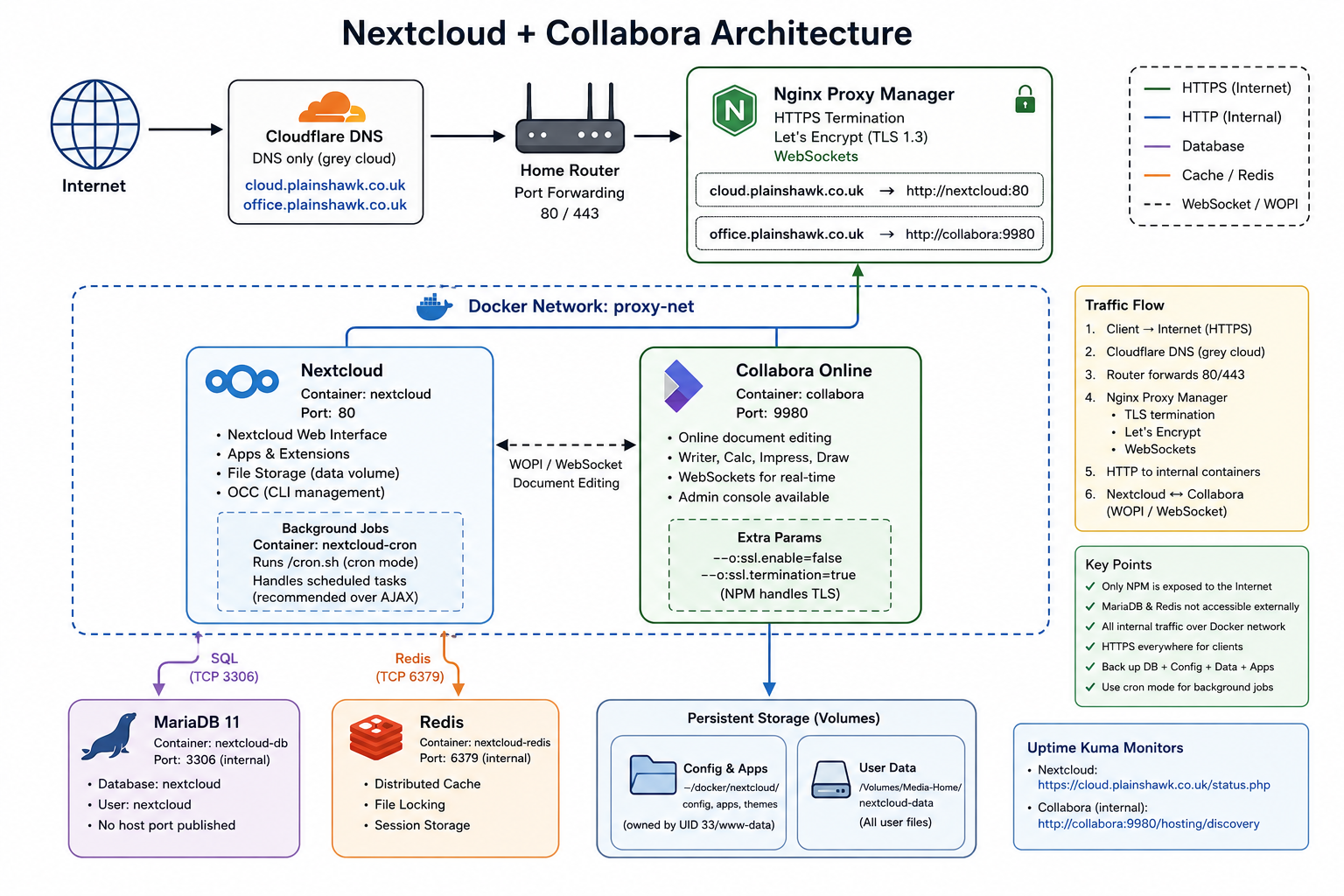
Only Nginx Proxy Manager is exposed to the LAN/Internet. MariaDB and Redis have no published host ports.
Key Lessons Incorporated From Your Setup
1. Never skip Nextcloud major versions
Nextcloud must be upgraded one major version at a time.
For example:
33 → 34 → 35 → 36
Do not attempt:
33 → 36
Before moving to the next major version, first bring the current major version up to its latest maintenance release.
This is also the official Nextcloud upgrade procedure. (Nextcloud)
2. Do not leave the installation-only admin variables in Compose
Do not permanently set:
NEXTCLOUD_ADMIN_USER
NEXTCLOUD_ADMIN_PASSWORD
They are intended for automatic first-run installation. The Docker image uses them when the instance is not yet installed. (Docker Hub)
For this installation we deliberately create the administrator through the web installer.
This also avoids confusing the initial installation process with the normal operation of the container.
3. The configuration directory must remain writable by www-data
Nextcloud's Apache container runs the application as UID 33 (www-data).
On macOS, Finder may display files owned by UID 33 as _appstore. This is normal.
If config.php cannot be read or written by UID 33, Nextcloud can enter an installation/login loop or produce errors such as:
Console has to be executed with the user that owns the file config/config.php
The Docker project's own troubleshooting examples show this exact ownership issue. (GitHub)
4. Redis and APCu should be explicitly configured
For a single-server installation, Nextcloud recommends:
APCu       → local cache
Redis      → distributed cache
Redis      → transactional file locking
This is the configuration used here. (Nextcloud)
5. MariaDB must be allowed enough time to initialise
Docker Desktop on macOS can take longer to initialise MariaDB than a native Linux Docker host.
The database healthcheck therefore has:
start_period: 30s
Nextcloud waits for the database and Redis healthchecks before starting.
6. Never use --lower-case-table-names=1
Do not add:
--lower-case-table-names=1
to MariaDB.
This can cause serious problems with existing Nextcloud databases and should not be introduced into this installation.
7. Collabora is behind Nginx Proxy Manager
NPM handles:
HTTPS
Let's Encrypt
TLS termination
WebSockets
Collabora therefore listens internally using HTTP.
The NPM proxy host must use:
Scheme: http
Forward port: 9980
not HTTPS.
8. Back up before every Nextcloud upgrade
Nextcloud does not support normal downgrades. If an upgrade fails, the supported recovery mechanism is restoration from backup rather than simply installing the previous version over the top. (Nextcloud)
Therefore:
Prerequisites
Before beginning, confirm:
- Docker Desktop is running.
proxy-netalready exists.- Nginx Proxy Manager is installed.
- Ports 80 and 443 are forwarded by the router.
- Cloudflare A records exist for:
cloud.plainshawk.co.ukoffice.plainshawk.co.uk
- Both Cloudflare records are DNS only / grey cloud.
- Your existing NPM container is connected to
proxy-net. - Vaultwarden is available for storing passwords and recovery information.
Part 1 — Nextcloud
Stage 1 — Create the Directory Structure
Create the Docker configuration and persistent data directories:
mkdir -p ~/docker/nextcloud
mkdir -p /Volumes/Media-Home/nextcloud-data

cd ~/docker/nextcloud
The resulting structure will be:
~/docker/nextcloud/
├── docker-compose.yml
├── config/
├── apps/
├── themes/
└── db/

/Volumes/Media-Home/nextcloud-data/
└── Nextcloud user files
The database lives under:
~/docker/nextcloud/db
while the large user-data directory lives on the external SSD:
/Volumes/Media-Home/nextcloud-data
Stage 2 — Create the Compose File
nano docker-compose.yml
Use:
services:

  nextcloud-db:
    image: mariadb:11
    container_name: nextcloud-db
    restart: unless-stopped

    command:
      - --transaction-isolation=READ-COMMITTED
      - --log-bin=binlog
      - --binlog-format=ROW

    environment:
      - MYSQL_ROOT_PASSWORD=choose_a_root_password
      - MYSQL_DATABASE=nextcloud
      - MYSQL_USER=nextcloud
      - MYSQL_PASSWORD=choose_a_db_password

    volumes:
      - ./db:/var/lib/mysql

    healthcheck:
      test: ["CMD", "healthcheck.sh", "--connect", "--innodb_initialized"]
      interval: 10s
      timeout: 5s
      retries: 10
      start_period: 30s


  nextcloud-redis:
    image: redis:alpine
    container_name: nextcloud-redis
    restart: unless-stopped

    healthcheck:
      test: ["CMD", "redis-cli", "ping"]
      interval: 10s
      timeout: 5s
      retries: 5
      start_period: 10s


  nextcloud:
    image: nextcloud:latest
    container_name: nextcloud
    restart: unless-stopped

    depends_on:
      nextcloud-db:
        condition: service_healthy
      nextcloud-redis:
        condition: service_healthy

    environment:

      # MariaDB
      - MYSQL_HOST=nextcloud-db
      - MYSQL_DATABASE=nextcloud
      - MYSQL_USER=nextcloud
      - MYSQL_PASSWORD=choose_a_db_password

      # Redis
      - REDIS_HOST=nextcloud-redis
      - REDIS_HOST_PORT=6379

      # Nextcloud
      - NEXTCLOUD_TRUSTED_DOMAINS=cloud.plainshawk.co.uk
      - TZ=Europe/London

      # Reverse proxy
      - APACHE_DISABLE_REWRITE_IP=1
      - TRUSTED_PROXIES=172.16.0.0/12
      - OVERWRITEHOST=cloud.plainshawk.co.uk
      - OVERWRITEPROTOCOL=https
      - OVERWRITECLIURL=https://cloud.plainshawk.co.uk

    volumes:
      - ./config:/var/www/html/config
      - ./apps:/var/www/html/custom_apps
      - ./themes:/var/www/html/themes
      - /Volumes/Media-Home/nextcloud-data:/var/www/html/data

    networks:
      - default
      - proxy-net


networks:

  default:

  proxy-net:
    external: true
Important
There are deliberately no:
NEXTCLOUD_ADMIN_USER=
NEXTCLOUD_ADMIN_PASSWORD=
entries.
The database variables are sufficient to pre-populate the database section of the installation wizard. The administrator will be created through the browser.
The official Docker image supports these database environment variables as part of its automatic configuration process. (Docker Hub)
Stage 3 — Start Nextcloud
Start the stack:
docker compose up -d
Watch the logs:
docker compose logs -f nextcloud
The first startup can take several minutes.
Press Ctrl+C once the container is running normally.
Then check the complete stack:
docker compose ps
You should see:
nextcloud-db       Up (healthy)
nextcloud-redis    Up (healthy)
nextcloud          Up
Stage 4 — Complete the First-Run Installation
Navigate to:
https://cloud.plainshawk.co.uk
The Nextcloud setup wizard should appear.
Create your administrator account.
Use a strong password and store it in Vaultwarden.
The database section should already be populated from the Compose environment:
Database:
MySQL/MariaDB

Database user:
nextcloud

Database password:
your database password

Database name:
nextcloud

Database host:
nextcloud-db
Click:
Install
Allow the installation to complete.
Do not interrupt the browser while the initial database is being created.
Stage 5 — Fix and Verify Permissions
Nextcloud's configuration and application directories must be accessible to UID 33.
Run:
sudo chown -R 33:33 ~/docker/nextcloud/config/
sudo chown -R 33:33 ~/docker/nextcloud/apps/
sudo chown -R 33:33 ~/docker/nextcloud/themes/
sudo chown -R 33:33 /Volumes/Media-Home/nextcloud-data/
Verify:
ls -ln ~/docker/nextcloud/config/config.php
The owner should be:
33
Do not be concerned if Finder displays this as _appstore.
Stage 6 — Configure Redis and APCu
Redis being present as a container is not enough. Nextcloud needs to be explicitly configured to use it.
Run:
docker exec -u www-data nextcloud php occ \
  config:system:set redis host \
  --value="nextcloud-redis"

docker exec -u www-data nextcloud php occ \
  config:system:set redis port \
  --value=6379 \
  --type=integer

docker exec -u www-data nextcloud php occ \
  config:system:set redis timeout \
  --value=0 \
  --type=integer
Configure the cache:
docker exec -u www-data nextcloud php occ \
  config:system:set memcache.local \
  --value="\OC\Memcache\APCu"

docker exec -u www-data nextcloud php occ \
  config:system:set memcache.distributed \
  --value="\OC\Memcache\Redis"

docker exec -u www-data nextcloud php occ \
  config:system:set memcache.locking \
  --value="\OC\Memcache\Redis"
Verify:
docker exec -u www-data nextcloud php occ \
  config:system:get memcache.local

docker exec -u www-data nextcloud php occ \
  config:system:get memcache.distributed

docker exec -u www-data nextcloud php occ \
  config:system:get memcache.locking
The expected values are:
\OC\Memcache\APCu
\OC\Memcache\Redis
\OC\Memcache\Redis
This follows Nextcloud's recommended APCu + Redis configuration for a single-server deployment. (Nextcloud)
Stage 7 — Post-Installation Optimisation
Run:
docker exec -u www-data nextcloud php occ \
  db:add-missing-indices
Update the MIME database:
docker exec -u www-data nextcloud php occ \
  maintenance:mimetype:update-db

docker exec -u www-data nextcloud php occ \
  maintenance:mimetype:update-js
Run the repair routines:
docker exec -u www-data nextcloud php occ \
  maintenance:repair --include-expensive
Set the maintenance window:
docker exec -u www-data nextcloud php occ \
  config:system:set maintenance_window_start \
  --value=2 \
  --type=integer
Stage 8 — Configure Background Jobs
This is an important addition to the original installation.
Nextcloud recommends cron rather than AJAX for reliable background processing. (Nextcloud)
The official Docker project provides a cron.sh mechanism and Compose examples using a second Nextcloud container for this purpose. (GitHub)
Add this service to docker-compose.yml:
  nextcloud-cron:
    image: nextcloud:latest
    container_name: nextcloud-cron
    restart: unless-stopped

    entrypoint: /cron.sh

    depends_on:
      nextcloud-db:
        condition: service_healthy
      nextcloud-redis:
        condition: service_healthy

    environment:
      - MYSQL_HOST=nextcloud-db
      - MYSQL_DATABASE=nextcloud
      - MYSQL_USER=nextcloud
      - MYSQL_PASSWORD=choose_a_db_password
      - REDIS_HOST=nextcloud-redis
      - REDIS_HOST_PORT=6379
      - TZ=Europe/London

    volumes:
      - ./config:/var/www/html/config
      - ./apps:/var/www/html/custom_apps
      - ./themes:/var/www/html/themes
      - /Volumes/Media-Home/nextcloud-data:/var/www/html/data

    networks:
      - default
The application and cron containers must have matching Nextcloud volumes; the official Docker examples specifically call this out. (GitHub)
Recreate the stack:
docker compose up -d
Then set Nextcloud's background-job mode to cron:
docker exec -u www-data nextcloud php occ background:cron
Verify:
docker exec -u www-data nextcloud php occ background:cron
Nextcloud should report:
Set mode for background jobs to 'cron'
Check the cron container:
docker logs nextcloud-cron
Stage 9 — Add the Nextcloud Proxy Host in NPM
Log into Nginx Proxy Manager.
Create a new Proxy Host.
Details
| Field | Value |
|---|---|
| Domain | cloud.plainshawk.co.uk |
| Scheme | http |
| Forward Hostname | nextcloud |
| Forward Port | 80 |
| Cache Assets | Off |
| Block Common Exploits | On |
| Websockets Support | On |
SSL
Select:
- Request a new Let's Encrypt certificate
- Force SSL: On
- HTTP/2 Support: On
Advanced
client_max_body_size 10240M;

proxy_request_buffering off;

proxy_read_timeout 600s;
proxy_send_timeout 600s;
send_timeout 600s;

# Block common WordPress scanners
# Do NOT block PHP — Nextcloud uses PHP.

location ~ /(wp-admin|wp-login|wp-content|wp-includes|xmlrpc\.php) {
    return 444;
}

location ~ /\.(env|git|svn|aws|ssh|npmrc) {
    return 444;
}

location ~ /(phpmyadmin|pma|adminer|mysql)/ {
    return 444;
}

# CalDAV / CardDAV discovery
location /.well-known/carddav {
    return 301 $scheme://$host/remote.php/dav;
}

location /.well-known/caldav {
    return 301 $scheme://$host/remote.php/dav;
}
Save the proxy host.
Stage 10 — Verify Nextcloud
Open:
https://cloud.plainshawk.co.uk
Log in.
Then go to:
Administration Settings → Overview
Check for:
- Database warnings
- Redis warnings
- Background-job warnings
- Trusted-domain warnings
- HTTPS warnings
- Missing PHP modules
- Security warnings
Fix any critical warnings before proceeding.
Part 2 — Collabora Online
Stage 11 — Create the Collabora Directory
mkdir -p ~/docker/collabora
cd ~/docker/collabora
Stage 12 — Create the Collabora Compose File
nano docker-compose.yml
Use:
services:

  collabora:
    image: collabora/code:latest
    container_name: collabora
    restart: unless-stopped

    cap_add:
      - MKNOD

    environment:
      - aliasgroup1=https://cloud.plainshawk.co.uk:443
      - DONT_GEN_SSL_CERT=YES
      - server_name=office.plainshawk.co.uk
      - dictionaries=en_GB en_US
      - TZ=Europe/London
      - username=admin
      - password=choose_a_collabora_admin_password
      - SSL_ENABLE=false
      - SSL_TERMINATION=true
      - extra_params=--o:ssl.enable=false --o:ssl.termination=true

    networks:
      - proxy-net


networks:

  proxy-net:
    external: true
Why the SSL settings are duplicated
Nginx Proxy Manager is responsible for HTTPS.
The traffic path is:
Browser
   │
   │ HTTPS
   ▼
NPM
   │
   │ HTTP
   ▼
Collabora :9980
The explicit:
extra_params=--o:ssl.enable=false --o:ssl.termination=true
is retained because recent Collabora CODE releases have continued to show certificate-startup problems in reverse-proxy deployments when SSL is disabled only through the environment configuration. (GitHub)
Stage 13 — Start Collabora
docker compose up -d
Watch the logs:
docker compose logs -f collabora
Look for a successful startup and a message indicating that the service is ready.
Press:
Ctrl+C
once startup is complete.
Check:
docker compose ps
Stage 14 — Add the Collabora Proxy Host
In NPM:
Proxy Hosts → Add Proxy Host
Details
| Field | Value |
|---|---|
| Domain | office.plainshawk.co.uk |
| Scheme | http |
| Forward Hostname | collabora |
| Forward Port | 9980 |
| Cache Assets | Off |
| Block Common Exploits | Off |
| Websockets Support | On |
The important point is:
NPM is terminating TLS.
SSL
- Request Let's Encrypt certificate
- Force SSL: On
- HTTP/2 Support: On
Advanced
proxy_buffering off;

proxy_read_timeout 36000s;
proxy_send_timeout 36000s;
proxy_connect_timeout 36000s;
send_timeout 36000s;

client_max_body_size 0;

proxy_http_version 1.1;

proxy_set_header Upgrade $http_upgrade;
proxy_set_header Connection "Upgrade";
proxy_set_header Host $http_host;
proxy_set_header X-Forwarded-For $proxy_add_x_forwarded_for;
proxy_set_header X-Forwarded-Proto $scheme;


location ^~ /browser {
    proxy_pass http://collabora:9980;
}

location ^~ /hosting/discovery {
    proxy_pass http://collabora:9980;
}

location ^~ /hosting/capabilities {
    proxy_pass http://collabora:9980;
}

location ~ ^/cool/(.*)/ws$ {
    proxy_pass http://collabora:9980;

    proxy_set_header Upgrade $http_upgrade;
    proxy_set_header Connection "Upgrade";
}

location ~ ^/(c|l)ool {
    proxy_pass http://collabora:9980;
}

location ^~ /cool/adminws {
    proxy_pass http://collabora:9980;
}


# Scanner blocking

location ~ \.(php|php\d|phtml|asp|aspx|cgi)$ {
    return 444;
}

location ~ /(wp-admin|wp-login|wp-content|wp-includes|xmlrpc\.php) {
    return 444;
}

location ~ /\.(env|git|svn|aws|ssh|npmrc) {
    return 444;
}
Save the proxy host.
Stage 15 — Install Nextcloud Office
In Nextcloud:
Apps → Office & text
Find:
Nextcloud Office
Install and enable it.
Then go to:
Administration Settings → Nextcloud Office
Select:
Use your own server
Enter:
https://office.plainshawk.co.uk
Save.
You should receive confirmation that the Collabora Online server is reachable.
If your version exposes the WOPI allow-list setting, restrict it to your internal Docker network:
172.16.0.0/12
Stage 16 — Test Collabora
Go to:
Files → New
Create:
- New document
- New spreadsheet
- New presentation
Each should open in the browser using Collabora.
If documents open but the editor is blank or repeatedly reconnects, check the NPM WebSocket configuration first.
Stage 17 — Configure Nextcloud Background Jobs
Return to:
Administration Settings → System
Confirm that Background jobs are configured for:
Cron
You can verify from the command line:
docker exec -u www-data nextcloud php occ background:cron
The cron container should then execute /cron.sh automatically.
Reliable background jobs are particularly important for activities such as notifications, file cleanup, previews and other scheduled maintenance. Nextcloud recommends cron over the default AJAX scheduler. (Nextcloud)
Stage 18 — Backup Nextcloud Properly
The original backup procedure backed up the database but not the complete Nextcloud installation.
For a recoverable backup, you should preserve:
MariaDB database
Nextcloud config
Nextcloud application data
Custom apps
Themes
User data
The Docker image documentation recommends persistent storage for both the database and Nextcloud data so that they can be backed up independently. (Docker Hub)
Database backup
Store the database password somewhere appropriate rather than hard-coding it into a public script.
For example, with your existing local setup:
docker exec nextcloud-db mariadb-dump \
  -u nextcloud \
  -p'YOUR_DATABASE_PASSWORD' \
  nextcloud \
  > "$BACKUP_DIR/nextcloud_$DATE.sql"
Nextcloud files
Add:
# Nextcloud configuration
cp -r ~/docker/nextcloud/config \
  "$BACKUP_DIR/nextcloud_config_$DATE"

# Custom applications
cp -r ~/docker/nextcloud/apps \
  "$BACKUP_DIR/nextcloud_apps_$DATE"

# Themes
cp -r ~/docker/nextcloud/themes \
  "$BACKUP_DIR/nextcloud_themes_$DATE"

# User data
cp -r /Volumes/Media-Home/nextcloud-data \
  "$BACKUP_DIR/nextcloud_data_$DATE"

echo "Nextcloud backup complete"
Important
A raw copy of the MariaDB database directory while MariaDB is running is not a substitute for a logical database dump.
The SQL dump should therefore be part of the normal backup.
Stage 19 — Create a Nextcloud Pre-Upgrade Backup Function
Add this to:
nano ~/.zshrc
nextcloud-backup() {

    DATE=$(date +%Y%m%d_%H%M%S)

    BACKUP_DIR="/Users/gavin/docker/backups"

    mkdir -p "$BACKUP_DIR"

    echo "Backing up Nextcloud database..."

    docker exec nextcloud-db mariadb-dump \
        -u nextcloud \
        -p'YOUR_DATABASE_PASSWORD' \
        nextcloud \
        > "$BACKUP_DIR/nextcloud_db_preop_$DATE.sql"

    echo "Backing up Nextcloud configuration..."

    cp -r ~/docker/nextcloud/config \
        "$BACKUP_DIR/nextcloud_config_preop_$DATE"

    echo "Backing up Nextcloud data..."

    cp -r /Volumes/Media-Home/nextcloud-data \
        "$BACKUP_DIR/nextcloud_data_preop_$DATE"

    echo "Nextcloud backup complete."

}
Reload:
source ~/.zshrc
Before an upgrade:
nextcloud-backup
Stage 20 — Add Nextcloud and Collabora to the Startup Script
Edit:
nano ~/docker/start-all.sh
Make sure these appear before Nginx Proxy Manager:
echo "Starting Nextcloud..."
cd /Users/gavin/docker/nextcloud && docker compose up -d

echo "Starting Collabora..."
cd /Users/gavin/docker/collabora && docker compose up -d
Because the Nextcloud Compose file contains health-based dependencies, MariaDB and Redis will be brought up before Nextcloud itself.
NPM should still be started last so that its upstream containers are already present on proxy-net.
Stage 21 — Add Both Services to Uptime Kuma
Create these monitors.
Nextcloud
| Field | Value |
|---|---|
| Name | Nextcloud |
| Type | HTTP(s) |
| URL | https://cloud.plainshawk.co.uk/status.php |
| Interval | 60 seconds |
| Retries | 3 |
Collabora
| Field | Value |
|---|---|
| Name | Collabora |
| Type | HTTP(s) |
| URL | http://collabora:9980/hosting/discovery |
| Interval | 60 seconds |
| Retries | 3 |
The Collabora monitor deliberately uses the internal Docker address.
This tests the actual service rather than introducing NPM, DNS and Let's Encrypt as additional failure points.
Updating Nextcloud
The Golden Rule
Nextcloud does not support normal downgrades. (Nextcloud)
The official procedure is to upgrade sequentially through each major release and first bring the existing major version up to its latest maintenance release. (Nextcloud)
Minor / Maintenance Update
For example:
34.0.1 → 34.0.2
First determine the installed version:
docker exec -u www-data nextcloud php occ status
Then:
cd ~/docker/nextcloud

# Back up everything important
nextcloud-backup

# Back up configuration separately
cp -r ./config \
  "./config-backup-$(date +%Y%m%d_%H%M%S)"

# Enable maintenance mode
docker exec -u www-data nextcloud php occ \
  maintenance:mode --on

# Pull the new image
docker compose pull nextcloud

# Recreate only Nextcloud
docker compose up -d --force-recreate nextcloud

# Watch startup
docker compose logs -f nextcloud
Then run:
docker exec -u www-data nextcloud php occ upgrade
Follow with:
docker exec -u www-data nextcloud php occ \
  db:add-missing-indices
Then:
docker exec -u www-data nextcloud php occ \
  maintenance:repair --include-expensive
Finally:
docker exec -u www-data nextcloud php occ \
  maintenance:mode --off
Check:
docker exec -u www-data nextcloud php occ status
Major Version Update
Suppose the current version is:
34.x
and you want:
35.x
First make sure you are on the latest 34.x maintenance release.
Then:
cd ~/docker/nextcloud

nextcloud-backup

cp -r ./config \
  "./config-backup-$(date +%Y%m%d_%H%M%S)"
Enable maintenance mode:
docker exec -u www-data nextcloud php occ \
  maintenance:mode --on
Change the image from:
image: nextcloud:latest
to the target major:
image: nextcloud:35
This gives you deliberate control over the major version rather than allowing an unexpected major upgrade.
Pull and recreate:
docker compose pull nextcloud
docker compose up -d --force-recreate nextcloud
Watch carefully:
docker compose logs -f nextcloud
Run:
docker exec -u www-data nextcloud php occ upgrade
Then:
docker exec -u www-data nextcloud php occ \
  db:add-missing-indices

docker exec -u www-data nextcloud php occ \
  maintenance:mimetype:update-db

docker exec -u www-data nextcloud php occ \
  maintenance:mimetype:update-js

docker exec -u www-data nextcloud php occ \
  maintenance:repair --include-expensive
Disable maintenance mode:
docker exec -u www-data nextcloud php occ \
  maintenance:mode --off
Verify:
docker exec -u www-data nextcloud php occ status
Check the web interface and Uptime Kuma before proceeding.
Repeat for Every Major Version
For example:
34 → 35
35 → 36
36 → 37
Do not jump directly from:
34 → 37
Nextcloud explicitly requires sequential major upgrades. (Nextcloud)
Also allow background migrations to complete before immediately performing another major upgrade. (Nextcloud)
Updating Collabora
Collabora has no Nextcloud database migration to perform, so its updates are considerably simpler.
cd ~/docker/collabora

docker compose pull

docker compose up -d --force-recreate

docker compose logs -f collabora
Look for the normal ready/startup messages.
Then test:
https://cloud.plainshawk.co.uk
Create or edit a document.
Important
Collabora's recent Docker releases have had compatibility issues around SSL termination and WebSockets, so do not assume that every latest update is harmless.
After a Collabora update always test:
- Open a document.
- Edit it.
- Save it.
- Reopen it.
- Test a spreadsheet.
- Test a presentation.
If the editor suddenly fails after an update, check the Collabora logs before changing the NPM configuration.
Quick Reference
| URL | Purpose |
|---|---|
https://cloud.plainshawk.co.uk |
Nextcloud |
https://cloud.plainshawk.co.uk/status.php |
Nextcloud health check |
https://office.plainshawk.co.uk |
Collabora Online endpoint |
https://office.plainshawk.co.uk/browser/dist/admin/admin.html |
Collabora administration |
Troubleshooting
Nextcloud enters an installation/login loop
Check that these are not present in the Compose file:
NEXTCLOUD_ADMIN_USER
NEXTCLOUD_ADMIN_PASSWORD
Then check:
cat ~/docker/nextcloud/config/config.php | grep installed
You should see:
'installed' => true,
If permissions are wrong:
sudo chown -R 33:33 ~/docker/nextcloud/config/
Restart:
docker compose up -d
maintenance:install or similar installation errors appear
Check the configuration:
docker exec -u www-data nextcloud php occ status
If occ cannot read config.php, check its ownership:
ls -ln ~/docker/nextcloud/config/config.php
It should be owned by UID 33.
Redis isn't being used
Check:
docker exec -u www-data nextcloud php occ \
  config:system:get memcache.locking
Expected:
\OC\Memcache\Redis
Then:
docker exec -u www-data nextcloud php occ \
  config:system:get redis host
Expected:
nextcloud-redis
Nextcloud reports background-job warnings
Check:
docker ps | grep nextcloud-cron
Then:
docker logs nextcloud-cron
Confirm the scheduler:
docker exec -u www-data nextcloud php occ background:cron
Nextcloud recommends cron mode for reliable production background processing. (Nextcloud)
Collabora crashes with a CA certificate error
Check:
docker logs collabora
If you see an error referring to:
ca-chain.cert.pem
verify that the Compose file contains:
- DONT_GEN_SSL_CERT=YES
- SSL_ENABLE=false
- SSL_TERMINATION=true
- extra_params=--o:ssl.enable=false --o:ssl.termination=true
Then:
docker compose up -d --force-recreate
Recent Collabora releases have demonstrated this exact failure mode when SSL termination is handled by an external reverse proxy. (GitHub)
"Collabora Online server is not reachable"
Check that:
aliasgroup1=https://cloud.plainshawk.co.uk:443
exactly matches the Nextcloud URL.
Check:
server_name=office.plainshawk.co.uk
Then test the internal service:
docker exec nextcloud \
  curl -s http://collabora:9980/hosting/discovery
You should receive XML describing the Collabora capabilities.
Also check that NPM uses:
Scheme: http
Host: collabora
Port: 9980
Collabora documents open but the editor is blank
The most likely cause is WebSocket handling.
In NPM confirm:
Websockets Support: On
and that the Advanced configuration contains:
proxy_http_version 1.1;
proxy_set_header Upgrade $http_upgrade;
proxy_set_header Connection "Upgrade";
502 Bad Gateway from NPM
Check:
docker ps
Then:
docker network inspect proxy-net
Confirm both:
nextcloud
collabora
nginx-proxy-manager
are connected to the network.
Test Nextcloud directly from NPM:
docker exec nginx-proxy-manager \
  curl -I http://nextcloud:80/status.php
Test Collabora:
docker exec nginx-proxy-manager \
  curl -I http://collabora:9980/hosting/discovery
MariaDB connection lost after reboot
Check:
docker compose ps
MariaDB should report:
healthy
before Nextcloud starts.
Check:
docker logs nextcloud-db
The:
start_period: 30s
healthcheck delay is deliberately present because MariaDB can take longer to initialise on Docker Desktop/macOS.
Nextcloud reports a database warning after an upgrade
Run:
docker exec -u www-data nextcloud php occ \
  db:add-missing-indices
Then:
docker exec -u www-data nextcloud php occ \
  maintenance:repair --include-expensive
Check the Nextcloud Administration → Overview page again.
Nextcloud shows a 502 immediately after a major upgrade
Do not immediately roll back the container.
Check:
docker compose logs -f nextcloud
Then:
docker exec -u www-data nextcloud php occ status
Database migrations can take time.
If the upgrade has genuinely failed, restore the database, configuration and data from the pre-upgrade backup rather than attempting to downgrade the installation in place. Nextcloud does not support normal downgrades. (Nextcloud)
Operational Checklist
Daily
- Uptime Kuma monitors Nextcloud.
- Uptime Kuma monitors Collabora.
- Nightly backup completes successfully.
Weekly
- Check Nextcloud Administration → Overview.
- Check for available maintenance/security updates.
- Review Docker logs for recurring errors.
- Verify backup storage.
Before every Nextcloud update
☐ Fresh database backup
☐ Fresh configuration backup
☐ Fresh user-data backup
☐ Check current Nextcloud version
☐ Read release/critical-change notes
☐ Check third-party app compatibility
☐ Enable maintenance mode
☐ Upgrade only one major version
☐ Run occ upgrade
☐ Run repair/index maintenance
☐ Disable maintenance mode
☐ Test web interface
☐ Test file upload/download
☐ Test mobile/client sync
☐ Check Uptime Kuma
Before every Collabora update
☐ Check Collabora release notes
☐ Pull new image
☐ Recreate container
☐ Check logs
☐ Open a document
☐ Edit and save
☐ Test spreadsheet
☐ Test presentation
☐ Check WebSockets
Final Architecture
The resulting design deliberately separates the major components:
                         INTERNET
                             │
                        HTTPS :443
                             │
                             ▼
                    ┌─────────────────┐
                    │ Cloudflare DNS  │
                    │  DNS only       │
                    └────────┬────────┘
                             │
                             ▼
                    ┌─────────────────┐
                    │ Home Router     │
                    │ 80 / 443        │
                    └────────┬────────┘
                             │
                             ▼
                  ┌──────────────────────┐
                  │ Nginx Proxy Manager  │
                  │                      │
                  │ TLS termination      │
                  │ Let's Encrypt        │
                  │ WebSockets           │
                  └──────────┬───────────┘
                             │
                       proxy-net
                             │
               ┌─────────────┴──────────────┐
               │                            │
               ▼                            ▼
       ┌───────────────┐            ┌────────────────┐
       │   Nextcloud   │◄──────────►│   Collabora    │
       │      :80      │            │     :9980      │
       └───────┬───────┘            └────────────────┘
               │
        ┌──────┴───────┐
        │              │
        ▼              ▼
  ┌───────────┐   ┌───────────┐
  │  MariaDB  │   │   Redis   │
  │    :3306  │   │   :6379   │
  └───────────┘   └───────────┘
        │
        ▼
  /Users/gavin/docker/
  /Volumes/Media-Home/

        ▲
        │
  ┌───────────────┐
  │    Backups    │
  │ DB + config + │
  │ apps + data   │
  └───────────────┘
The key security principle is that MariaDB and Redis never need to be exposed outside Docker, while NPM is the sole public-facing gateway. Nextcloud and Collabora communicate internally, and all external access is protected by HTTPS at the proxy layer.