
Making self-hosted services available and Secure under Docker

Installing, Securing and Updating Nginx Proxy Manager
Mac Mini · Docker · Nginx Proxy Manager · Cloudflare
Nginx Proxy Manager (NPM) is the front door to the Plainshawk homelab. It terminates HTTPS, manages Let's Encrypt certificates and routes requests from your public domains to the Docker containers behind it.
That makes NPM one of the most security-sensitive components in the entire environment. A compromise of NPM can potentially provide an attacker with access to every service behind the reverse proxy.
This guide therefore treats NPM differently from an ordinary Docker application: the administration interface is kept off the public network, two-factor authentication is enabled, the shared Docker network is deliberately managed outside NPM, NPM is started last, and its configuration and certificates are backed up separately.
Security status — 29 August 2026: the official Nginx Proxy Manager repository currently lists v2.15.1 as its latest tagged release. However, CVE-2026-40519 affects versions 2.9.14 through 2.15.1 and has been fixed in upstream commita5db5ed. Until a tagged release containing that fix is available, do not blindly deploylatestand assume it is safe. (GitHub)
Architecture
The basic architecture is:
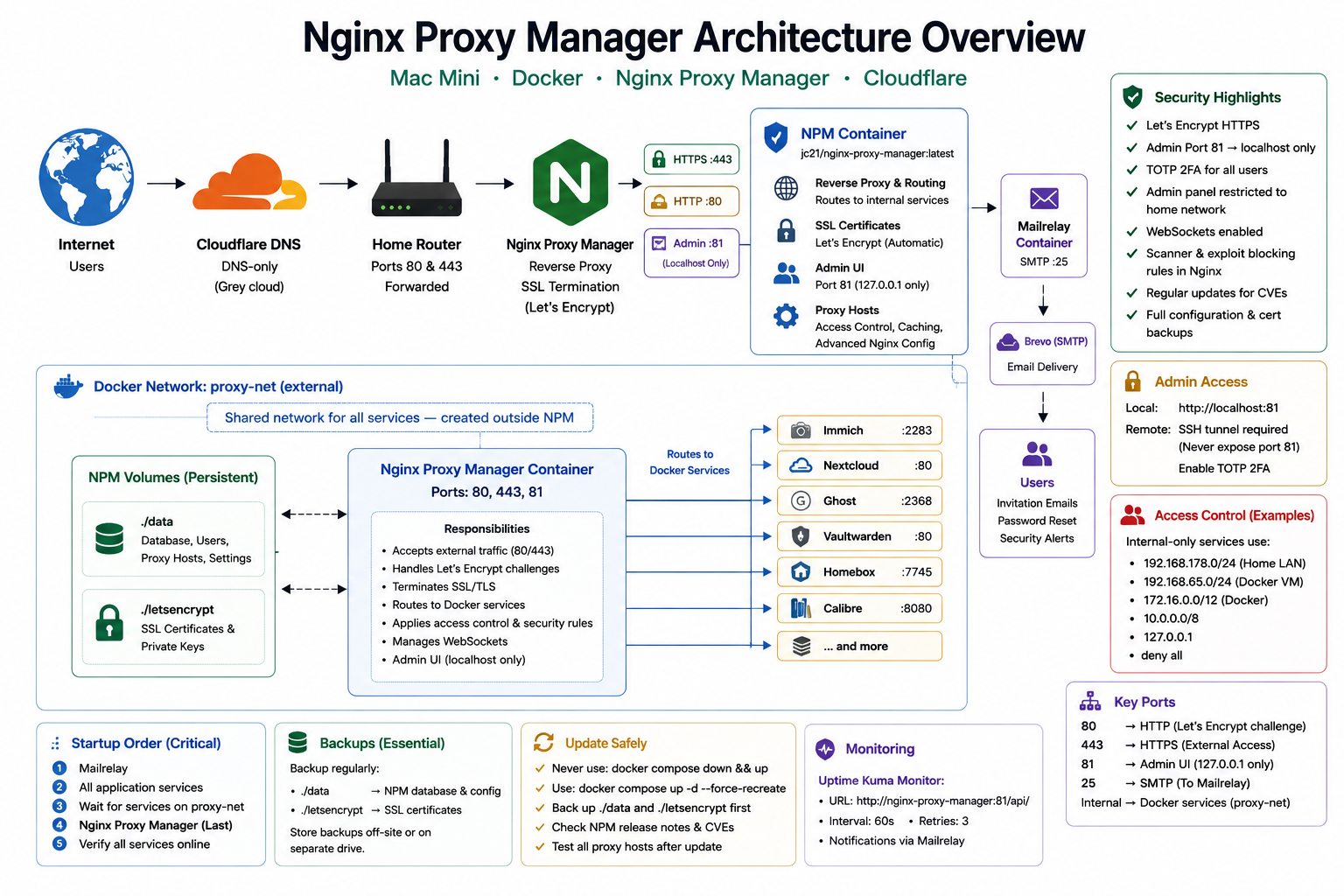
NPM is the only container that needs to publish ports 80 and 443. The application containers remain internal to Docker and communicate with NPM over proxy-net.
Security Findings Incorporated
Several recent vulnerabilities reinforce why NPM should be treated as a critical security component.
CVE-2026-40519 — authenticated remote code execution
NPM versions 2.9.14 through 2.15.1 contain an authenticated command-injection vulnerability in the Certbot DNS-provider handling. An attacker with the appropriate certificate-management permission could inject commands through DNS-provider credentials. The fix was committed upstream as a5db5ed. (NVD)
This is particularly important for a homelab because NPM normally runs with considerable privileges inside its container and has access to certificates, proxy configuration and the shared Docker network.
Mitigation: use a release containing the fix as soon as one is available, keep the administration interface inaccessible from the Internet, enable TOTP 2FA and restrict certificate-management privileges to trusted users.
CVE-2026-50892 — Let's Encrypt private-key disclosure
NPM 2.14.0 contained an access-control vulnerability allowing an authenticated attacker to retrieve Let's Encrypt TLS private-key material through a certificate-download endpoint. (NVD)
This is another reason not to remain on old NPM releases.
CVE-2025-50579 — CORS/JWT exposure
NPM 2.12.3 had a CORS misconfiguration that could expose sensitive data, including JWT tokens, to an unauthorised origin. (NVD)
OpenResty / NGINX vulnerabilities
NPM 2.15.0 updated OpenResty to address CVE-2026-42945, CVE-2026-8711 and CVE-2026-9256. The NPM release notes explicitly identify these fixes. (GitHub)
The underlying NGINX issues include heap-buffer-overflow vulnerabilities in the rewrite module, while CVE-2026-8711 affects NGINX JavaScript functionality under specific configurations. (Nginx)
Bottom line: NPM should be updated promptly whenever a patched release becomes available.
Critical Lessons
1. Never expose port 81 to the Internet
Port 81 is the NPM administration interface.
Bind it to localhost:
- "127.0.0.1:81:81"
Do not use:
- "81:81"
The latter exposes the administration interface on the Mac's network interfaces.
If remote administration is required, use an SSH tunnel rather than exposing port 81 publicly.
2. proxy-net must be an external Docker network
NPM and all proxied services share the same Docker network.
NPM must join this network but must not own it.
This means:
external: true
is important.
An external network is not removed by docker compose down. However, down still removes the NPM container and its network attachment, causing unnecessary disruption and creating a race when NPM is brought back up.
For this environment, use:
docker compose up -d --force-recreate
rather than routinely doing:
docker compose down
docker compose up -d
3. NPM starts last
NPM's generated Nginx configuration contains Docker hostnames such as:
immich_server
ghost
nextcloud
vaultwarden
Those containers must already exist on proxy-net when NPM starts.
Consequently, the startup script starts all application containers first and NPM last.
4. Keep a backup of NPM's database and certificates
The NPM database contains your proxy hosts, access lists, users and configuration.
The letsencrypt directory contains your certificates and private keys.
Back up both.
5. Keep your Advanced-tab configurations separately
The Advanced tab contains hand-written Nginx configuration which is easy to lose if the NPM database is damaged or reset.
This guide therefore records the configurations explicitly.
Prerequisites
Before starting:
- Docker Desktop is running
proxy-netexists- Ports 80 and 443 are forwarded by the router to the Mac Mini
- Port 81 is not forwarded
- All application containers that NPM will proxy are configured to join
proxy-net - Cloudflare A records point to your public IP
- Cloudflare records are DNS only / grey cloud
- You have a backup strategy for the NPM database and certificates
For Let's Encrypt HTTP-01 validation, port 80 must be reachable from the Internet.
Stage 1 — Create the Shared Docker Network
Create the network once:
docker network create proxy-net
Verify:
docker network ls | grep proxy-net
You should see:
proxy-net
The network is deliberately independent of NPM's Compose project.
Stage 2 — Create the Directory Structure
mkdir -p ~/docker/npm
cd ~/docker/npm
The resulting structure will be:
~/docker/npm/
├── docker-compose.yml
├── data/
└── letsencrypt/
Docker creates data and letsencrypt when NPM starts.
Stage 3 — Create the Compose File
nano docker-compose.yml
Use:
services:
  npm:
    image: jc21/nginx-proxy-manager:latest
    container_name: nginx-proxy-manager
    restart: unless-stopped

    ports:
      - "80:80"
      - "443:443"
      - "127.0.0.1:81:81"

    volumes:
      - ./data:/data
      - ./letsencrypt:/etc/letsencrypt

    environment:
      DISABLE_IPV6: "true"

    logging:
      driver: json-file
      options:
        max-size: 10m
        max-file: "3"

    healthcheck:
      test: ["CMD", "curl", "-f", "http://localhost:81/api/"]
      interval: 30s
      timeout: 5s
      retries: 3
      start_period: 20s

    networks:
      - proxy-net

networks:
  proxy-net:
    external: true
Important: image-version security gate
The latest tag is convenient, but it should not be treated as a security control.
At the time this guide was written, the official repository still listed 2.15.1 as the latest tagged release, while CVE-2026-40519 lists 2.15.1 as affected. (GitHub)
Therefore, before deploying or updating NPM, check the official release list and confirm that the release you intend to use contains the CVE-2026-40519 fix.
Once a patched release is published, preferably replace latest with the specific version:
image: jc21/nginx-proxy-manager:2.x.x
Pinning the version gives you explicit control over upgrades.
The upstream fix for CVE-2026-40519 is commit:
a5db5ed156355e3088e7d1ceb0533d4bae922def
The change replaces shell-based credential-file creation with direct file operations. (GitHub)
For a production-like homelab, wait for an official tagged release containing this fix rather than building an unofficial image unless you are comfortable maintaining that build yourself.
Stage 4 — Create the Startup Script
NPM should be the last application container started.
Edit:
nano ~/docker/start-all.sh
Use:
#!/bin/bash

# ============================================================
# Plainshawk Docker startup
# ============================================================

# Wait for Docker Desktop
echo "Waiting for Docker..."
until docker info > /dev/null 2>&1; do
    sleep 2
done

echo "Docker is ready."

# Ensure shared network exists
docker network inspect proxy-net > /dev/null 2>&1 || \
    docker network create proxy-net

echo "proxy-net ready."

# ============================================================
# Backend services
# ============================================================

echo "Starting Mail Relay..."
cd /Users/gavin/docker/mailrelay && docker compose up -d

echo "Starting Immich..."
cd /Users/gavin/docker/immich && docker compose up -d

echo "Starting Plex..."
cd /Users/gavin/docker/plex && docker compose up -d

echo "Starting Nextcloud..."
cd /Users/gavin/docker/nextcloud && docker compose up -d

echo "Starting Collabora..."
cd /Users/gavin/docker/collabora && docker compose up -d

echo "Starting Ghost..."
cd /Users/gavin/docker/ghost && docker compose up -d

echo "Starting Homebox..."
cd /Users/gavin/docker/homebox && docker compose up -d

echo "Starting Vaultwarden..."
cd /Users/gavin/docker/vaultwarden && docker compose up -d

echo "Starting Uptime Kuma..."
cd /Users/gavin/docker/uptimekuma && docker compose up -d

echo "Starting Immich Kiosk..."
cd /Users/gavin/docker/immich-kiosk && docker compose up -d

echo "Starting Lychee..."
cd /Users/gavin/docker/lychee && docker compose up -d

echo "Starting Calibre..."
cd /Users/gavin/docker/calibre && docker compose up -d

echo "Starting BirdNET-Go..."
cd /Users/gavin/docker/birdnet && docker compose up -d

echo "Starting Paperless-NGX..."
cd /Users/gavin/docker/paperless && docker compose up -d

# Give Docker DNS time to register containers
echo "Waiting for services to register on proxy-net..."
sleep 20

# ============================================================
# NPM — deliberately started LAST
# ============================================================

echo "Starting Nginx Proxy Manager..."
cd /Users/gavin/docker/npm && docker compose up -d

echo "All services started."
Make it executable:
chmod +x ~/docker/start-all.sh
Stage 5 — First Start
Start the complete environment:
~/docker/start-all.sh
Then:
cd ~/docker/npm
docker compose logs -f npm
Look for:
Backend PID ... listening on port 3000
Press Ctrl+C.
Check:
docker compose ps
NPM should show as running.
Stage 6 — First Login
Because port 81 is bound only to localhost, access NPM directly from the Mac:
http://localhost:81
The default credentials are:
Email:    admin@example.com
Password: changeme
Immediately:
- Change the email address
- Change the password
- Store the new password in Vaultwarden
- Do not reuse the password elsewhere
Stage 7 — Enable Two-Factor Authentication
TOTP-based two-factor authentication was introduced in NPM 2.13.6. (GitHub)
Go to:
Account Settings → Two Factor Auth
Enable TOTP.
Scan the QR code with your authenticator.
Your preferred option is to store the NPM TOTP credential in Vaultwarden.
Store the recovery codes somewhere safe.
Stage 8 — Cloudflare DNS
For every service, create an A record in Cloudflare.
For example:
| Type | Name | Content | Proxy |
|---|---|---|---|
| A | photos | Your public IP | DNS only |
| A | cloud | Your public IP | DNS only |
| A | blog | Your public IP | DNS only |
| A | vault | Your public IP | DNS only |
| A | homebox | Your public IP | DNS only |
| A | status | Your public IP | DNS only |
| A | calibre | Your public IP | DNS only |
| A | books | Your public IP | DNS only |
| A | docs | Your public IP | DNS only |
The grey-cloud/DNS-only configuration allows Let's Encrypt HTTP-01 validation to reach your router directly.
Stage 9 — Add the Proxy Hosts
The Plainshawk environment uses the following proxy hosts:
| Service | Domain | Docker host | Port | WebSockets |
|---|---|---|---|---|
| Immich | photos.plainshawk.co.uk | immich_server |
2283 | On |
| Plex | plex.plainshawk.co.uk | plex |
32400 | On |
| Nextcloud | cloud.plainshawk.co.uk | nextcloud |
80 | On |
| Collabora | office.plainshawk.co.uk | collabora |
9980 | On |
| Ghost | blog.plainshawk.co.uk | ghost |
2368 | On |
| Vaultwarden | vault.plainshawk.co.uk | vaultwarden |
80 | On |
| Homebox | homebox.plainshawk.co.uk | homebox |
7745 | On |
| Uptime Kuma | status.plainshawk.co.uk | uptime-kuma |
3001 | On |
| Immich Kiosk | kiosk.plainshawk.co.uk | immich-kiosk |
3000 | On |
| Lychee | gallery.plainshawk.co.uk | lychee |
80 | On |
| Calibre | calibre.plainshawk.co.uk | calibre |
8080 | On |
| Calibre-Web | books.plainshawk.co.uk | calibre-web |
8083 | On |
| BirdNET-Go | birds.plainshawk.co.uk | birdnet-go |
8080 | On |
| Paperless-NGX | docs.plainshawk.co.uk | paperless |
8000 | On |
For each proxy host:
Details
Scheme:              http
Forward Hostname:   <Docker hostname>
Forward Port:       <port>
Cache Assets:       Off
Block Common Exploits: On
Websockets Support: On
For Collabora, use its configured HTTPS upstream if required by your existing Collabora deployment.
SSL
Request a new SSL Certificate
Force SSL: On
HTTP/2 Support: On
Stage 10 — Standard Scanner Blocking
The following block is useful on most application proxy hosts.
# Block common PHP / CGI probes
location ~ \.(php|php\d|phtml|asp|aspx|cgi)$ {
    return 444;
}

# WordPress probes
location ~ /(wp-admin|wp-login|wp-content|wp-includes|xmlrpc\.php) {
    return 444;
}

# Secret/configuration files
location ~ /\.(env|git|svn|aws|ssh|npmrc) {
    return 444;
}

# Database administration probes
location ~ /(phpmyadmin|pma|adminer|mysql)/ {
    return 444;
}

# Common command-injection probes
location ~ /(shell|cmd|exec|system|passthru|eval)/ {
    return 444;
}
The purpose is not to replace application security. It simply drops large volumes of automated Internet scanning traffic before it reaches the application.
Stage 11 — Home Network Restriction
For services that should only be accessible from home, use:
allow 192.168.178.0/24;
allow 192.168.65.0/24;
allow 172.16.0.0/12;
allow 10.0.0.0/8;
allow 127.0.0.1;
deny all;
The important ranges are:
192.168.178.0/24   Home LAN
192.168.65.0/24    Docker Desktop VM network on macOS
172.16.0.0/12      Docker networks
10.0.0.0/8         Private networks
127.0.0.1          Localhost
The 192.168.65.0/24 entry is particularly important on Docker Desktop for Mac.
If you receive a 403 from your own network, check the address NPM actually sees:
docker exec nginx-proxy-manager \
  tail -20 /data/logs/proxy-host-*_error.log
Do not blindly add arbitrary Internet addresses to the allow list.
Stage 12 — Immich Advanced Configuration
Immich requires unusually large uploads and long-running connections.
client_max_body_size 50000M;
proxy_request_buffering off;
client_body_buffer_size 1024k;

proxy_set_header Host $host;
proxy_set_header X-Real-IP $remote_addr;
proxy_set_header X-Forwarded-For $proxy_add_x_forwarded_for;
proxy_set_header X-Forwarded-Proto $scheme;

proxy_read_timeout 600s;
proxy_send_timeout 600s;
send_timeout 600s;

proxy_http_version 1.1;
proxy_redirect off;

location / {
    proxy_pass http://immich_server:2283;
    proxy_set_header Upgrade $http_upgrade;
    proxy_set_header Connection "upgrade";
}

location /.well-known/immich {
    proxy_pass http://immich_server:2283;
}

# Scanner blocking
location ~ \.(php|php\d|phtml|asp|aspx|cgi)$ { return 444; }
location ~ /(wp-admin|wp-login|wp-content|wp-includes|xmlrpc\.php) { return 444; }
location ~ /\.(env|git|svn|aws|ssh|npmrc) { return 444; }
location ~ /(phpmyadmin|pma|adminer|mysql)/ { return 444; }
location ~ /(shell|cmd|exec|system|passthru|eval)/ { return 444; }
Stage 13 — Nextcloud Advanced Configuration
client_max_body_size 10240M;
proxy_request_buffering off;

proxy_read_timeout 600s;
proxy_send_timeout 600s;
send_timeout 600s;

location ~ /(wp-admin|wp-login|wp-content|wp-includes|xmlrpc\.php) {
    return 444;
}

location ~ /\.(env|git|svn|aws|ssh|npmrc) {
    return 444;
}

location ~ /(phpmyadmin|pma|adminer|mysql)/ {
    return 444;
}

location /.well-known/carddav {
    return 301 $scheme://$host/remote.php/dav;
}

location /.well-known/caldav {
    return 301 $scheme://$host/remote.php/dav;
}
Stage 14 — Collabora Advanced Configuration
Collabora requires long-lived WebSocket connections.
proxy_buffering off;

proxy_read_timeout 36000s;
proxy_send_timeout 36000s;
proxy_connect_timeout 36000s;
send_timeout 36000s;

client_max_body_size 0;

proxy_http_version 1.1;

proxy_set_header Upgrade $http_upgrade;
proxy_set_header Connection "Upgrade";
proxy_set_header Host $http_host;
proxy_set_header X-Forwarded-For $proxy_add_x_forwarded_for;
proxy_set_header X-Forwarded-Proto $scheme;

location ^~ /browser {
    proxy_pass http://collabora:9980;
}

location ^~ /hosting/discovery {
    proxy_pass http://collabora:9980;
}

location ^~ /hosting/capabilities {
    proxy_pass http://collabora:9980;
}

location ~ ^/cool/(.*)/ws$ {
    proxy_pass http://collabora:9980;
    proxy_set_header Upgrade $http_upgrade;
    proxy_set_header Connection "Upgrade";
}

location ~ ^/(c|l)ool {
    proxy_pass http://collabora:9980;
}

location ^~ /cool/adminws {
    proxy_pass http://collabora:9980;
}

location ~ \.(php|php\d|phtml|asp|aspx|cgi)$ { return 444; }
location ~ /(wp-admin|wp-login|wp-content|wp-includes|xmlrpc\.php) { return 444; }
location ~ /\.(env|git|svn|aws|ssh|npmrc) { return 444; }
Stage 15 — Ghost Advanced Configuration
client_max_body_size 50M;

proxy_read_timeout 300s;
proxy_send_timeout 300s;
proxy_buffering off;

location ~ \.(php|php\d|phtml|asp|aspx|cgi)$ {
    return 444;
}

location ~ /(wp-admin|wp-login|wp-content|wp-includes|xmlrpc\.php) {
    return 444;
}

location ~ /\.(env|git|svn|aws|ssh|npmrc) {
    return 444;
}

location ~ /(phpmyadmin|pma|adminer|mysql)/ {
    return 444;
}

location ~ /(shell|cmd|exec|system|passthru|eval)/ {
    return 444;
}
Stage 16 — Vaultwarden Advanced Configuration
Vaultwarden needs WebSockets for reliable client synchronisation.
proxy_read_timeout 90s;
proxy_buffering off;

location ~ \.(php|php\d|phtml|asp|aspx|cgi)$ {
    return 444;
}

location ~ /(wp-admin|wp-login|wp-content|wp-includes|xmlrpc\.php) {
    return 444;
}

location ~ /\.(env|git|svn|aws|ssh|npmrc) {
    return 444;
}

location ~ /(phpmyadmin|pma|adminer|mysql)/ {
    return 444;
}

location ~ /(shell|cmd|exec|system|passthru|eval)/ {
    return 444;
}

# Admin interface — home network only
location /admin {
    allow 192.168.178.0/24;
    allow 192.168.65.0/24;
    allow 172.16.0.0/12;
    allow 10.0.0.0/8;
    allow 127.0.0.1;
    deny all;

    proxy_pass http://vaultwarden:80;
}
The Vaultwarden admin interface should never be exposed unnecessarily.
Stage 17 — Homebox, Immich Kiosk, Lychee and BirdNET-Go
These services are internal-only in this environment.
allow 192.168.178.0/24;
allow 192.168.65.0/24;
allow 172.16.0.0/12;
allow 10.0.0.0/8;
allow 127.0.0.1;
deny all;

client_max_body_size 10M;

proxy_read_timeout 300s;
proxy_send_timeout 300s;
proxy_buffering off;

location ~ \.(php|php\d|phtml|asp|aspx|cgi)$ {
    return 444;
}

location ~ /(wp-admin|wp-login|wp-content|wp-includes|xmlrpc\.php) {
    return 444;
}

location ~ /\.(env|git|svn|aws|ssh|npmrc) {
    return 444;
}

location ~ /(phpmyadmin|pma|adminer|mysql)/ {
    return 444;
}

location ~ /(shell|cmd|exec|system|passthru|eval)/ {
    return 444;
}
Stage 18 — Uptime Kuma
Uptime Kuma is also internal-only:
allow 192.168.178.0/24;
allow 192.168.65.0/24;
allow 172.16.0.0/12;
allow 10.0.0.0/8;
allow 127.0.0.1;
deny all;

location ~ \.(php|php\d|phtml|asp|aspx|cgi)$ {
    return 444;
}

location ~ /(wp-admin|wp-login|wp-content|wp-includes|xmlrpc\.php) {
    return 444;
}

location ~ /\.(env|git|svn|aws|ssh|npmrc) {
    return 444;
}

location ~ /(phpmyadmin|pma|adminer|mysql)/ {
    return 444;
}

proxy_read_timeout 3600s;
proxy_send_timeout 3600s;
proxy_buffering off;
The long WebSocket timeout is important for Uptime Kuma's live dashboard.
Stage 19 — Calibre Desktop
allow 192.168.178.0/24;
allow 192.168.65.0/24;
allow 172.16.0.0/12;
allow 10.0.0.0/8;
allow 127.0.0.1;
deny all;

client_max_body_size 100M;

proxy_read_timeout 600s;
proxy_send_timeout 600s;
proxy_buffering off;

location ~ \.(php|php\d|phtml|asp|aspx|cgi)$ { return 444; }
location ~ /(wp-admin|wp-login|wp-content|wp-includes|xmlrpc\.php) { return 444; }
location ~ /\.(env|git|svn|aws|ssh|npmrc) { return 444; }
location ~ /(phpmyadmin|pma|adminer|mysql)/ { return 444; }
location ~ /(shell|cmd|exec|system|passthru|eval)/ { return 444; }
Stage 20 — Calibre-Web
Calibre-Web itself can be publicly available, but its administration interface should be restricted.
client_max_body_size 100M;

proxy_read_timeout 600s;
proxy_send_timeout 600s;
proxy_buffering off;

location ~ \.(php|php\d|phtml|asp|aspx|cgi)$ { return 444; }
location ~ /(wp-admin|wp-login|wp-content|wp-includes|xmlrpc\.php) { return 444; }
location ~ /\.(env|git|svn|aws|ssh|npmrc) { return 444; }
location ~ /(phpmyadmin|pma|adminer|mysql)/ { return 444; }
location ~ /(shell|cmd|exec|system|passthru|eval)/ { return 444; }

location /admin {
    allow 192.168.178.0/24;
    allow 192.168.65.0/24;
    allow 172.16.0.0/12;
    allow 10.0.0.0/8;
    allow 127.0.0.1;
    deny all;

    proxy_pass http://calibre-web:8083;
}
Stage 21 — Paperless-NGX
allow 192.168.178.0/24;
allow 192.168.65.0/24;
allow 172.16.0.0/12;
allow 10.0.0.0/8;
allow 127.0.0.1;
deny all;

client_max_body_size 100M;

proxy_read_timeout 300s;
proxy_send_timeout 300s;
proxy_buffering off;

location ~ \.(php|php\d|phtml|asp|aspx|cgi)$ { return 444; }
location ~ /(wp-admin|wp-login|wp-content|wp-includes|xmlrpc\.php) { return 444; }
location ~ /\.(env|git|svn|aws|ssh|npmrc) { return 444; }
location ~ /(phpmyadmin|pma|adminer|mysql)/ { return 444; }
location ~ /(shell|cmd|exec|system|passthru|eval)/ { return 444; }
Stage 22 — Plex
Plex requires a number of client-identification headers to be preserved.
proxy_buffering off;
proxy_request_buffering off;

proxy_set_header X-Plex-Client-Identifier $http_x_plex_client_identifier;
proxy_set_header X-Plex-Device $http_x_plex_device;
proxy_set_header X-Plex-Device-Name $http_x_plex_device_name;
proxy_set_header X-Plex-Platform $http_x_plex_platform;
proxy_set_header X-Plex-Platform-Version $http_x_plex_platform_version;
proxy_set_header X-Plex-Product $http_x_plex_product;
proxy_set_header X-Plex-Token $http_x_plex_token;
proxy_set_header X-Plex-Version $http_x_plex_version;
proxy_set_header X-Plex-Provides $http_x_plex_provides;
proxy_set_header X-Plex-Device-Vendor $http_x_plex_device_vendor;
proxy_set_header X-Plex-Model $http_x_plex_model;

proxy_read_timeout 600s;
proxy_send_timeout 600s;
send_timeout 600s;

location ~ \.(php|php\d|phtml|asp|aspx|cgi)$ { return 444; }
location ~ /(wp-admin|wp-login|wp-content|wp-includes|xmlrpc\.php) { return 444; }
location ~ /\.(env|git|svn|aws|ssh|npmrc) { return 444; }
location ~ /(phpmyadmin|pma|adminer|mysql)/ { return 444; }
Stage 23 — Back Up NPM
NPM has two critical persistent areas:
~/docker/npm/data
~/docker/npm/letsencrypt
Edit:
nano ~/docker/backups/backup.sh
Add:
# Nginx Proxy Manager
cp -r ~/docker/npm/data \
  $BACKUP_DIR/npm_data_$DATE

cp -r ~/docker/npm/letsencrypt \
  $BACKUP_DIR/npm_letsencrypt_$DATE

echo "NPM backup done"
The certificate backup is particularly important because it contains the existing Let's Encrypt certificates and private keys.
Stage 24 — Create a Safe NPM Update Function
Add the following to:
nano ~/.zshrc
npm-update() {
    echo "=========================================="
    echo "Nginx Proxy Manager safe update"
    echo "=========================================="

    DATE=$(date +%Y%m%d_%H%M%S)

    echo "Backing up NPM database..."
    cp -r ~/docker/npm/data \
        ~/docker/backups/npm_data_preupdate_$DATE

    echo "Backing up Let's Encrypt certificates..."
    cp -r ~/docker/npm/letsencrypt \
        ~/docker/backups/npm_letsencrypt_preupdate_$DATE

    echo "Pulling image..."
    cd ~/docker/npm || return 1
    docker compose pull

    echo "Recreating NPM..."
    docker compose up -d --force-recreate

    echo ""
    echo "NPM container recreated."
    echo "Check logs with:"
    echo "cd ~/docker/npm && docker compose logs -f npm"
}
Reload the shell:
source ~/.zshrc
From now on:
npm-update
performs the update while preserving the external proxy-net.
Updating NPM
Because NPM is the gateway to the entire homelab, updates should be treated as controlled maintenance rather than routine container refreshes.
Before updating:
- Check the official NPM release notes
- Check the security advisories
- Confirm the release contains the security fixes you require
- Back up
data - Back up
letsencrypt - Pull the new image
- Recreate NPM
- Check the logs
- Test several proxy hosts
The official repository currently lists v2.15.1 as the latest tagged release. (GitHub)
Because v2.15.1 is affected by CVE-2026-40519, do not treat it as a safe endpoint merely because it is the latest numbered release. The upstream fix is present in commit a5db5ed; wait for an official release containing that fix or deliberately build and maintain the patched source yourself. (GitHub)
Once a patched release is available:
cd ~/docker/npm

# Back up first
cp -r ./data ~/docker/backups/npm_data_preupdate_$(date +%Y%m%d_%H%M%S)
cp -r ./letsencrypt ~/docker/backups/npm_letsencrypt_preupdate_$(date +%Y%m%d_%H%M%S)

# Pull the patched image
docker compose pull

# Recreate without destroying the external network
docker compose up -d --force-recreate

# Watch startup
docker compose logs -f npm
Then verify:
- NPM admin interface works
- All proxy hosts are Online
- HTTPS works
- Let's Encrypt certificates are present
- Advanced configurations are still present
- At least two or three public services work
- Internal-only services remain inaccessible from outside the home network
When Removing a Service
Removing a service requires more than deleting its Docker container.
If a proxy host and its certificate are no longer required:
1. Delete the proxy host
In NPM:
Proxy Hosts → select host → Delete
2. Delete its SSL certificate
Go to:
SSL Certificates
Delete the certificate belonging to the removed service.
3. Remove orphaned certificate files if necessary
Only do this after confirming the certificate is no longer used.
For example:
rm -rf ~/docker/npm/letsencrypt/live/npm-X
rm -rf ~/docker/npm/letsencrypt/archive/npm-X
rm -f ~/docker/npm/letsencrypt/renewal/npm-X.conf
Replace X with the actual certificate identifier.
Orphaned certificate configuration can cause problems during later certificate-renewal operations.
Quick Reference
| URL | Purpose |
|---|---|
http://localhost:81 |
NPM administration |
https://photos.plainshawk.co.uk |
Immich |
https://cloud.plainshawk.co.uk |
Nextcloud |
https://blog.plainshawk.co.uk |
Ghost |
https://vault.plainshawk.co.uk |
Vaultwarden |
https://homebox.plainshawk.co.uk |
Homebox |
https://status.plainshawk.co.uk |
Uptime Kuma |
https://calibre.plainshawk.co.uk |
Calibre |
https://books.plainshawk.co.uk |
Calibre-Web |
https://docs.plainshawk.co.uk |
Paperless-NGX |
Troubleshooting
NPM crashes on startup with SSL renewal errors
An orphaned certificate may be causing the problem.
Check:
docker compose logs npm
Look for the affected certificate/domain.
Remove the corresponding proxy host and SSL certificate, then restart NPM.
nginx: host not found in upstream
The container NPM is trying to proxy to is either:
- not running
- not attached to
proxy-net - using the wrong Docker hostname
- being started after NPM
Check:
docker ps
Then:
docker network inspect proxy-net
The relevant container should appear in the network's container list.
Restart the complete environment in the correct order:
~/docker/start-all.sh
502 Bad Gateway on every service
NPM is running, but its upstream containers are unavailable.
Check:
docker network inspect proxy-net
If the application containers are missing:
~/docker/start-all.sh
Do not immediately rebuild NPM.
503 on one service
Check the individual container:
docker ps | grep <service-name>
Then test it from NPM:
docker exec nginx-proxy-manager \
  curl -s http://<container>:<port>
Advanced configurations disappeared
The NPM database may have been reset or damaged.
Restore:
npm_data_*
from your backup.
If necessary, recreate the proxy hosts and use the configurations documented in this guide.
403 from inside the home network
The NPM access list is probably rejecting the address Docker Desktop presents to NPM.
Check:
docker exec nginx-proxy-manager \
  tail -20 /data/logs/proxy-host-*_error.log
Look at the source address.
On macOS/Docker Desktop, ensure the appropriate Docker Desktop subnet is allowed:
allow 192.168.65.0/24;
Do not remove the deny all; unless there is a specific reason.
502 after restarting NPM
Check whether the upstream containers are attached to proxy-net:
docker network inspect proxy-net
If necessary:
docker network connect proxy-net <container-name>
However, the better solution is to ensure the service's Compose file contains:
networks:
  - proxy-net

networks:
  proxy-net:
    external: true
and start it through start-all.sh.
Let's Encrypt renewal is failing
Check that:
- Port 80 is forwarded to the Mac Mini
- The Cloudflare record is DNS-only/grey-cloud
- The domain resolves to your public IP
- Nothing else is occupying port 80
- NPM is running
Check:
docker compose logs -f npm
Admin panel is unreachable
Because port 81 is deliberately bound to localhost, use:
http://localhost:81
If accessing the Mac remotely, create an SSH tunnel rather than exposing port 81:
ssh -L 8181:127.0.0.1:81 user@mac-mini
Then open:
http://localhost:8181
This preserves the important security property that NPM's administrative interface is not exposed to the LAN or Internet.
Final Security Checklist
Before considering NPM production-ready:
- [ ] Port 80 forwarded for Let's Encrypt
- [ ] Port 443 forwarded for HTTPS
- [ ] Port 81 not forwarded
- [ ] Port 81 bound to
127.0.0.1 - [ ]
proxy-netcreated independently of NPM - [ ] All upstream containers attached to
proxy-net - [ ] NPM starts after the upstream containers
- [ ] Default NPM credentials changed
- [ ] TOTP 2FA enabled
- [ ] Recovery codes stored securely
- [ ] Admin account protected by a strong password
- [ ] Internal-only services use IP restrictions
- [ ] Vaultwarden
/adminis restricted - [ ] Calibre administration is restricted
- [ ] Calibre-Web
/adminis restricted - [ ] Uptime Kuma is restricted
- [ ] Homebox is restricted
- [ ] Paperless-NGX is restricted
- [ ] Scanner-blocking rules are configured
- [ ] NPM
datais backed up - [ ] Let's Encrypt certificates are backed up
- [ ] Advanced proxy configurations are documented
- [ ] NPM security advisories are checked before upgrades
- [ ] NPM is not upgraded blindly to a vulnerable
latestimage - [ ] Proxy hosts are tested after every update
- [ ] An official release containing the CVE-2026-40519 fix is used as soon as available
NPM is effectively the security perimeter for the entire homelab. Keeping its administration interface private, limiting who can administer certificates and maintaining reliable backups are therefore more important than almost any individual application setting behind it.