Setting up a Book Library under Docker

Installing, Securing and Updating Calibre + Calibre-Web
Mac Mini · Docker · Nginx Proxy Manager
Calibre and Calibre-Web provide a powerful combination for managing and reading an ebook collection.
In this setup, Calibre provides the full desktop application through a browser-based KasmVNC desktop. It is used for importing books, editing metadata, downloading covers and managing the library.
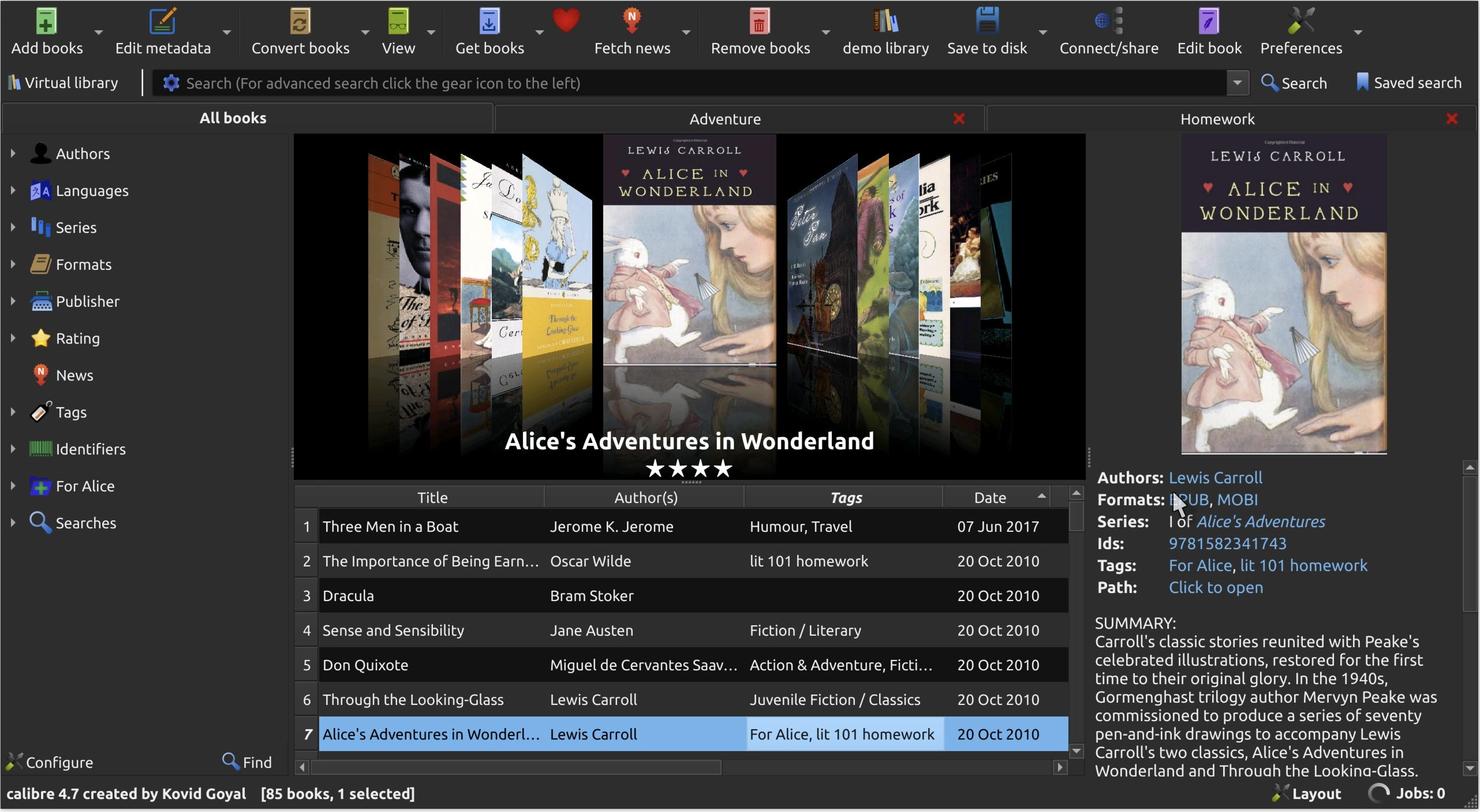
Calibre-Web provides a much simpler web interface for browsing, reading and downloading the same library.
The two applications share the ebook library but have separate application databases and user accounts.
Architecture
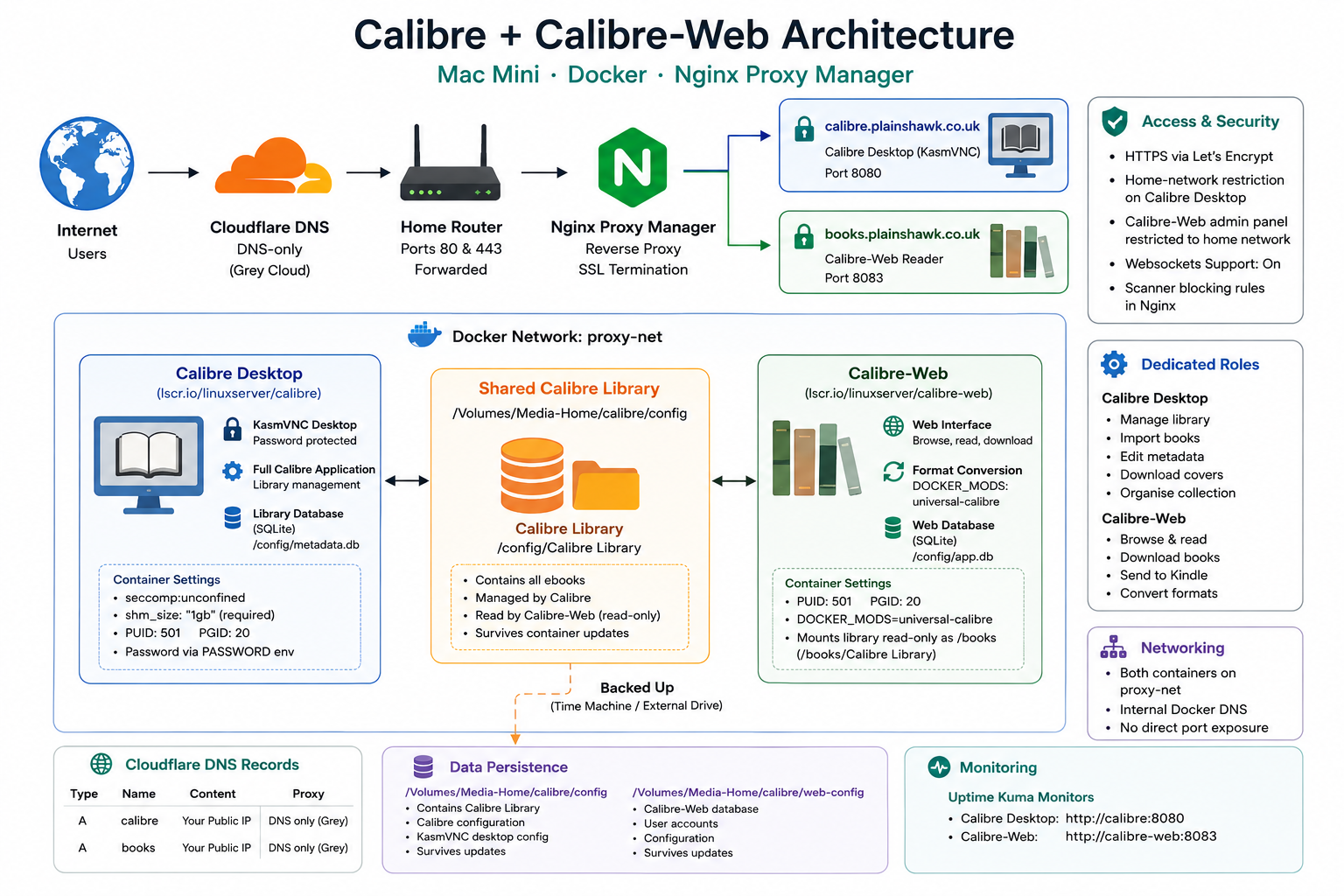
Both containers share the same underlying Calibre library, but Calibre-Web has its own configuration and user database.
The library itself lives on the external /Volumes/Media-Home drive.
Key lessons from this installation
There are several details that are particularly important in this installation.
1. Don’t change Calibre’s library path
The official LinuxServer documentation specifies:
/config/Calibre Libraryas the library location and explicitly says that support is not provided if a different path is used.
This is particularly important because changing the path was responsible for duplicate-library problems in this installation.
2. Give the Calibre desktop container enough shared memory
The current LinuxServer Calibre image documents:
shm_size: "1gb"for the desktop container. This is particularly important for the KasmVNC-based graphical desktop.
3. Calibre and Calibre-Web have separate accounts
Your Calibre desktop password does not become your Calibre-Web password.
They are separate applications with separate databases.
4. Change the Calibre-Web default password immediately
A new Calibre-Web installation uses:
Username: admin
Password: admin123
Change this as soon as the initial setup is complete.
5. Understand where uploaded books go
Files uploaded through the Calibre KasmVNC desktop initially land in:
/config/DesktopThey are not automatically added to the Calibre library.
You must use Add books in Calibre to import them.
6. Protect Calibre-Web administration
The Calibre-Web reader interface can be useful remotely, but the administration interface should remain restricted to the home network.
7. Confirm your macOS UID and GID
Don’t assume the values are always 501/20. Check them:
id -u
id -g
Before you start
You will need:
- Docker Desktop running
- The
proxy-netDocker network already created - Ports 80 and 443 forwarded on your router
- Cloudflare A records for:
calibre.plainshawk.co.ukbooks.plainshawk.co.uk
- Both Cloudflare records set to DNS only — grey cloud
Installation
Stage 1 — Create the directory structure
Create the Docker configuration directories:
mkdir -p ~/docker/calibre
mkdir -p /Volumes/Media-Home/calibre/config
mkdir -p /Volumes/Media-Home/calibre/web-config

cd ~/docker/calibre
The directory structure will be:
Directory | Purpose |
|---|---|
| Docker Compose configuration |
| Calibre configuration and library |
| The actual ebook library |
| Calibre-Web configuration and database |
Calibre creates:
/config/Calibre Librarywhen it first starts.
Do not create a separate library directory and don’t point Calibre at another location.
The LinuxServer documentation explicitly specifies /config/Calibre Library as the supported library path.
Confirm your macOS user IDs
Stage 2 — Check PUID and PGID
LinuxServer containers use PUID and PGID to control ownership of files written to bind-mounted directories.
Check your values:
id -u
id -g
On a typical macOS installation these will be:
501
20
But use the values actually returned by your Mac.
For the rest of this article I’ll use:
PUID=501
PGID=20
Replace them if your system reports different values.
Create the Docker Compose configuration
Stage 3 — Create the Compose file
Create the file:
nano docker-compose.ymlPaste:
services:

  calibre:
    image: lscr.io/linuxserver/calibre:latest
    container_name: calibre
    restart: unless-stopped

    security_opt:
      - seccomp:unconfined

    shm_size: "1gb"

    environment:
      - PUID=501
      - PGID=20
      - TZ=Europe/London
      - PASSWORD=choose_a_desktop_password

    volumes:
      - /Volumes/Media-Home/calibre/config:/config

    networks:
      - proxy-net


  calibre-web:
    image: lscr.io/linuxserver/calibre-web:latest
    container_name: calibre-web
    restart: unless-stopped

    depends_on:
      - calibre

    environment:
      - PUID=501
      - PGID=20
      - TZ=Europe/London
      - DOCKER_MODS=linuxserver/mods:universal-calibre

    volumes:
      - /Volumes/Media-Home/calibre/web-config:/config
      - /Volumes/Media-Home/calibre/config:/books:ro

    networks:
      - proxy-net


networks:
  proxy-net:
    external: true
Understanding the Compose file
seccomp:unconfined
The LinuxServer Calibre image documents this as an option needed by many modern graphical applications to function correctly.
shm_size: "1gb"
The Calibre desktop uses a graphical KasmVNC environment. LinuxServer recommends a larger shared-memory allocation for the desktop image.
PASSWORD
This protects access to the Calibre KasmVNC desktop.
It is not your Calibre library password and does not control Calibre-Web.
The Calibre library
The entire /config directory is mounted from:
/Volumes/Media-Home/calibre/configso the library is created at:
/Volumes/Media-Home/calibre/config/Calibre LibraryCalibre-Web
Calibre-Web mounts the Calibre configuration directory read-only:
/Volumes/Media-Home/calibre/config:/books:roConsequently, inside the Calibre-Web container the library appears at:
/books/Calibre LibraryThe :ro is deliberate: Calibre-Web can read the shared library but cannot modify files directly through that mount.
DOCKER_MODS
The universal-calibre Docker Mod adds the Calibre binaries required for ebook conversion. LinuxServer documents this as the optional mechanism for enabling conversion in Calibre-Web.
DNS
Stage 4 — Add the DNS records
In Cloudflare, create:
Type | Name | Content | Proxy |
|---|---|---|---|
A |
| Your public IP | Grey cloud — DNS only |
A |
| Your public IP | Grey cloud — DNS only |
You will therefore have:
calibre.plainshawk.co.uk
books.plainshawk.co.uk
Start the containers
Stage 5 — Start Calibre and Calibre-Web
Start both containers:
docker compose up -dWatch the Calibre logs:
docker compose logs -f calibreThe first startup can take several minutes.
Calibre-Web may also take longer than expected on its first start because the universal-calibre Docker Mod needs to install the additional Calibre components.
Press Ctrl+C once the containers are running.
Then check them:
docker compose psBoth should show as running.
Configure Nginx Proxy Manager
Stage 6 — Add the Calibre Proxy Host
Log into Nginx Proxy Manager:
Proxy Hosts → Add Proxy Host
Details
Field | Value |
|---|---|
Domain |
|
Scheme |
|
Forward Hostname |
|
Forward Port |
|
Cache Assets | Off |
Block Common Exploits | On |
Websockets Support | On |
* Important: the current LinuxServer Calibre image has changed its desktop networking behaviour and now documents HTTPS as the default, following a July 2025 breaking change.
If your current image expects HTTPS on the proxied connection, use:
Scheme: https
Forward Port: 8181
rather than the older http:8080 configuration above.
For an existing installation that is known to be working on http://calibre:8080, don’t change this merely because the documentation has changed; verify the actual container behaviour first.
SSL
On the SSL tab:
- Request a new Let’s Encrypt certificate
- Force SSL: On
- HTTP/2 Support: On
Advanced configuration
# Home network restriction
#
# 192.168.178.0/24 = your home LAN
# 192.168.65.0/24  = Docker Desktop VM gateway on macOS
# 172.16.0.0/12    = Docker internal networks

allow 192.168.178.0/24;
allow 192.168.65.0/24;
allow 172.16.0.0/12;
allow 10.0.0.0/8;
allow 127.0.0.1;
deny all;

# Large ebook files
client_max_body_size 100M;

# Calibre operations can take time
proxy_read_timeout 600s;
proxy_send_timeout 600s;
proxy_buffering off;

# Block scanners

location ~ \.(php|php\d|phtml|asp|aspx|cgi)$ {
    return 444;
}

location ~ /(wp-admin|wp-login|wp-content|wp-includes|xmlrpc\.php) {
    return 444;
}

location ~ /\.(env|git|svn|aws|ssh|npmrc) {
    return 444;
}

location ~ /(phpmyadmin|pma|adminer|mysql)/ {
    return 444;
}

location ~ /(shell|cmd|exec|system|passthru|eval)/ {
    return 444;
}
Save the Proxy Host.
Configure Calibre-Web
Add the second Proxy Host
Create another Proxy Host in Nginx Proxy Manager.
Details
Field | Value |
|---|---|
Domain |
|
Scheme |
|
Forward Hostname |
|
Forward Port |
|
Cache Assets | Off |
Block Common Exploits | On |
Websockets Support | On |
SSL
- Request a new Let’s Encrypt certificate
- Force SSL: On
- HTTP/2 Support: On
Advanced configuration
client_max_body_size 100M;

proxy_read_timeout 600s;
proxy_send_timeout 600s;
proxy_buffering off;

# Block scanners — Calibre-Web uses Python

location ~ \.(php|php\d|phtml|asp|aspx|cgi)$ {
    return 444;
}

location ~ /(wp-admin|wp-login|wp-content|wp-includes|xmlrpc\.php) {
    return 444;
}

location ~ /\.(env|git|svn|aws|ssh|npmrc) {
    return 444;
}

location ~ /(phpmyadmin|pma|adminer|mysql)/ {
    return 444;
}

location ~ /(shell|cmd|exec|system|passthru|eval)/ {
    return 444;
}

# Restrict Calibre-Web administration
# to the home network

location /admin {
    allow 192.168.178.0/24;
    allow 192.168.65.0/24;
    allow 172.16.0.0/12;
    allow 10.0.0.0/8;
    allow 127.0.0.1;
    deny all;

    proxy_pass http://calibre-web:8083;
}
Save the Proxy Host.
/admin is restrictedCalibre-Web is primarily a reading and browsing interface, while the administration area contains configuration and library-management controls.
Restricting /admin means the reader interface can remain accessible while administrative functions remain available only from the home network.
If you don’t need Calibre-Web to be accessible outside your home at all, an even simpler and more secure approach is to apply the entire home-network ACL to the Proxy Host, just as with the Calibre desktop.
Configure Calibre
Stage 7 — Initial Calibre desktop setup
Navigate to:
Log in using the PASSWORD specified in the Compose file.
On first launch, Calibre displays its setup wizard.
When asked for the library location:
Leave the library location alone
Use the default:
/config/Calibre LibraryDo not change it.
LinuxServer explicitly documents this as the supported library path.
Click Next through the remaining wizard screens.
The Calibre desktop should then open.
Configure Calibre-Web
Stage 8 — Initial Calibre-Web setup
Navigate to https://books.plainshawk.co.uk
https://books.plainshawk.co.ukThe initial login is:
adminPassword: admin123These are the documented defaults for the LinuxServer Calibre-Web image.
Configure the library
On the initial configuration page, enter:
/books/Calibre LibraryClick Check access.
You should receive a green confirmation.
Click Save.
Log in using:
admin
admin123
Then immediately change the password.
Go to:
Admin → Edit User → admin
Set:
- A strong new password
- Your email address
Store the password in Vaultwarden.
Configure Calibre-Web
Stage 9 — Basic configuration
Go to:
Admin → Configuration
Feature Configuration
Configure:
Setting | Value |
|---|---|
Enable uploads | On |
Allow anonymous browsing | Off |
Enable public registration | Off |
Calibre binaries
Under the Calibre binary settings, configure:
/usr/bin/as the Calibre binaries directory.
The current LinuxServer documentation specifies /usr/bin/ for current Calibre-Web versions.
Test this by converting an ebook to another format.
For example:
EPUB → MOBIor another format appropriate to your device.
Configure email and Kindle delivery
SMTP
Configure Calibre-Web to use the existing Mailrelay:
Setting | Value |
|---|---|
SMTP server |
|
SMTP port |
|
SMTP encryption | None |
From email |
|
Save the settings and send a test email.
Kindle delivery
If you use Kindle delivery:
- Add your Kindle email address under:
Admin → Edit User → admin - Add:
books@plainshawk.co.uk
to Amazon’s approved sender list under Personal Document Settings. - Test sending a book from Calibre-Web.
Understanding the two applications
Stage 10 — The correct workflow
This is probably the most important section of the whole article.
Calibre is the library manager; Calibre-Web is the reader interface
Think of the two applications as having different jobs.
Task | Use |
|---|---|
Import books | Calibre |
Edit metadata | Calibre |
Download covers | Calibre |
Organise the library | Calibre |
Format conversion | Calibre or Calibre-Web |
Browse books | Calibre-Web |
Read books | Calibre-Web |
Download books | Calibre-Web |
Send books to Kindle | Calibre-Web |
Both applications work with the same underlying library.
Adding books through Calibre
Uploading through the KasmVNC desktop
If you use the Calibre desktop web interface to upload a book, the uploaded file initially goes into:
/config/DesktopIt is not automatically part of the library.
The correct procedure is:
1. Upload the ebook
Use the KasmVNC upload button.
The file will appear in:
/config/Desktop2. Open Calibre
Click:
Add books
3. Select the uploaded file
Navigate to:
/config/DesktopSelect the ebook.
4. Let Calibre import it
Calibre copies the book into:
/config/Calibre Libraryand adds it to the Calibre database.
5. Check Calibre-Web
The book should then appear automatically in Calibre-Web because both applications are using the same library.
Adding books through Calibre-Web
Calibre-Web can also upload books directly.
Click:
Upload
in the Calibre-Web interface and select the ebook.
This is the easier method when you simply want to add an individual ebook without using the full Calibre desktop.
Automatic startup
Stage 11 — Add Calibre to the startup script
Open:
nano ~/docker/start-all.shConfirm this appears before the Nginx Proxy Manager startup line:
echo "Starting Calibre..."
cd /Users/gavin/docker/calibre && docker compose up -d
Both Calibre and Calibre-Web will start together.
Monitoring
Stage 12 — Add both services to Uptime Kuma
Add two monitors to Uptime Kuma.
Name | Type | URL |
|---|---|---|
Calibre | HTTP |
|
Calibre-Web | HTTP |
|
As with the other Plainshawk services, internal Docker URLs are preferable because they test the application directly rather than testing the complete external path through Cloudflare and Nginx Proxy Manager.
Note: if the current Calibre image is using its newer HTTPS-only desktop configuration, use the appropriate HTTPS endpoint rather than assuming http://calibre:8080. LinuxServer’s current documentation notes this breaking change.
Updating Calibre and Calibre-Web
Stage 13 — Update both containers
Both images are maintained by LinuxServer and receive regular updates.
The standard LinuxServer update process is to pull the new images and recreate the containers.
First change to the directory:
cd ~/docker/calibrePull the latest images:
docker compose pullThen recreate the containers:
docker compose up -d --force-recreateFinally watch the logs:
docker compose logs -f calibre-webCheck both containers:
docker compose psBack up before significant updates
Because the Calibre library is valuable, I would make a backup before major Calibre or Calibre-Web upgrades.
At minimum, make sure your normal Time Machine and external-drive backup routines include:
/Volumes/Media-Home/calibre/This contains both the ebook library and the application configuration.
Check for available updates
If you are using the Plainshawk update-checking script:
python3 ~/docker/check_updates.py --quietRun this periodically so that important application updates don’t get missed.
For Calibre-Web in particular, keeping the application current is sensible because security fixes can be included in regular releases.
Quick reference
URL | Purpose |
|---|---|
| Calibre desktop — manage the library |
| Calibre-Web — browse, read and download |
| Calibre-Web administration |
Important paths
Path | Purpose |
|---|---|
| Calibre configuration |
| Calibre ebook library |
| Calibre-Web database/configuration |
| Temporary upload location inside Calibre |
Troubleshooting
Calibre-Web says “No books found”
The most likely cause is an incorrect library path.
Go to:
Admin → Configuration
and check that the library is:
/books/Calibre LibraryPay particular attention to the space between Calibre and Library.
The mapping is:
Host:
/Volumes/Media-Home/calibre/config

        ↓

Calibre-Web:
/books
Therefore:
/books/Calibre Librarycorresponds to:
/Volumes/Media-Home/calibre/config/Calibre LibraryKasmVNC desktop is slow or unstable
Check the Compose file contains:
shm_size: "1gb"The LinuxServer Calibre image specifically documents this shared-memory setting for the desktop container.
Also check:
security_opt:
  - seccomp:unconfined
Then recreate the container:
docker compose up -d --force-recreateI can’t log into Calibre-Web using my Calibre password
This is expected.
Calibre and Calibre-Web have completely separate authentication systems.
The Calibre desktop password comes from:
PASSWORD=in the Compose file.
Calibre-Web has its own user database.
Its initial credentials are:
admin
admin123
Change them immediately after installation.
I forgot the Calibre-Web administrator password
The LinuxServer documentation provides a command-line reset method. The important point is to specify the correct Calibre-Web database.
First locate the database at:
/config/app.dbThen:
docker exec -it calibre-web \
  python3 /app/calibre-web/cps.py \
  -p /config/app.db \
  -s admin:newpassword
Then restart Calibre-Web:
docker compose restart calibre-webFormat conversion doesn’t work
Check that the Docker Mod has installed correctly:
docker logs calibre-web | grep -i "calibre\|mod"Also check the Calibre binary setting in Calibre-Web:
/usr/bin/If the Docker Mod failed to initialise, recreate the container:
docker compose up -d --force-recreateThe current LinuxServer documentation confirms that DOCKER_MODS=linuxserver/mods:universal-calibre enables the conversion functionality.
I get a 403 from Calibre
The Nginx Proxy Manager home-network restriction is blocking the request.
Check your Mac’s address:
ipconfig getifaddr en0If necessary, check what address NPM actually sees in its error log.
Remember that Docker Desktop on macOS can introduce the:
192.168.65.0/24network, which is why it is included in the NPM allow list.
Books added in Calibre don’t appear in Calibre-Web
First confirm that both applications are looking at the same library.
Calibre:
/config/Calibre LibraryCalibre-Web:
/books/Calibre LibraryIf the paths are correct, reconnect the Calibre database from:
Calibre-Web → Admin → Tasks → Reconnect database
Books uploaded through Calibre aren’t appearing in the library
Remember that KasmVNC uploads initially go to:
/config/DesktopUploading a book does not automatically import it into Calibre.
Open Calibre and use:
Add books → /config/Desktop
to import the file.
Calibre suddenly starts with a different or empty library
Stop and investigate before adding books.
This almost certainly means that Calibre has been pointed at a different library path.
Check that the library remains:
/config/Calibre LibraryDo not create another library to try to fix the problem.
This is precisely the sort of duplicate-library problem that the fixed library path is intended to prevent. LinuxServer explicitly requires the default path for supported configurations.
Security checklist
- Keep the library on
/Volumes/Media-Home - Use
/config/Calibre Libraryfor the Calibre library - Don’t create a second library directory
- Use your actual macOS PUID/PGID
- Use a strong Calibre KasmVNC password
- Change Calibre-Web’s
admin/admin123password immediately - Store passwords in Vaultwarden
- Put both containers on
proxy-net - Use HTTPS through Nginx Proxy Manager
- Restrict Calibre desktop to the home network
- Restrict Calibre-Web administration to the home network
- Include
192.168.65.0/24in NPM’s macOS allow list - Keep
shm_size: "1gb" - Keep
seccomp:unconfined - Back up
/Volumes/Media-Home/calibre - Monitor both containers with Uptime Kuma
- Check for updates regularly
Conclusion
Calibre and Calibre-Web work particularly well together when their roles are kept separate.
Calibre is the library manager.
It is where books are imported, metadata is cleaned up, covers are downloaded and the collection is organised.
Calibre-Web is the library interface.
It provides the attractive, lightweight interface for browsing, reading, downloading and sending books to Kindle.
Both applications ultimately work from the same library:
/Volumes/Media-Home/calibre/config/Calibre Librarywhile maintaining completely separate application databases.
The most important rule is therefore simple:
Let Calibre own the library structure, and let Calibre-Web consume that library.
That avoids the duplicate-library and path problems encountered during the original setup and gives the Plainshawk ebook collection a clean separation between library management and everyday reading.